

Documentation Index
Fetch the complete documentation index at: https://docs-dev.tessact.ai/llms.txt
Use this file to discover all available pages before exploring further.
Overview
This release adds audio analysis, a global render queue, editor templates, dynamic text, automatic video scaling prompts, and a clearer workflow step experience.What’s new
AI Video Templates
Create reusable templates for intros, outros, overlays, or brand elements. Build once; apply to any draft or remix.AI Video Templates differ from templates in other tools in that they are understood and applied intelligently by Tessact AI.
Assemble the template
In the editor that opens, add assets from the left panel, arrange them on the timeline, and position them on the canvas. Add dynamic text where needed.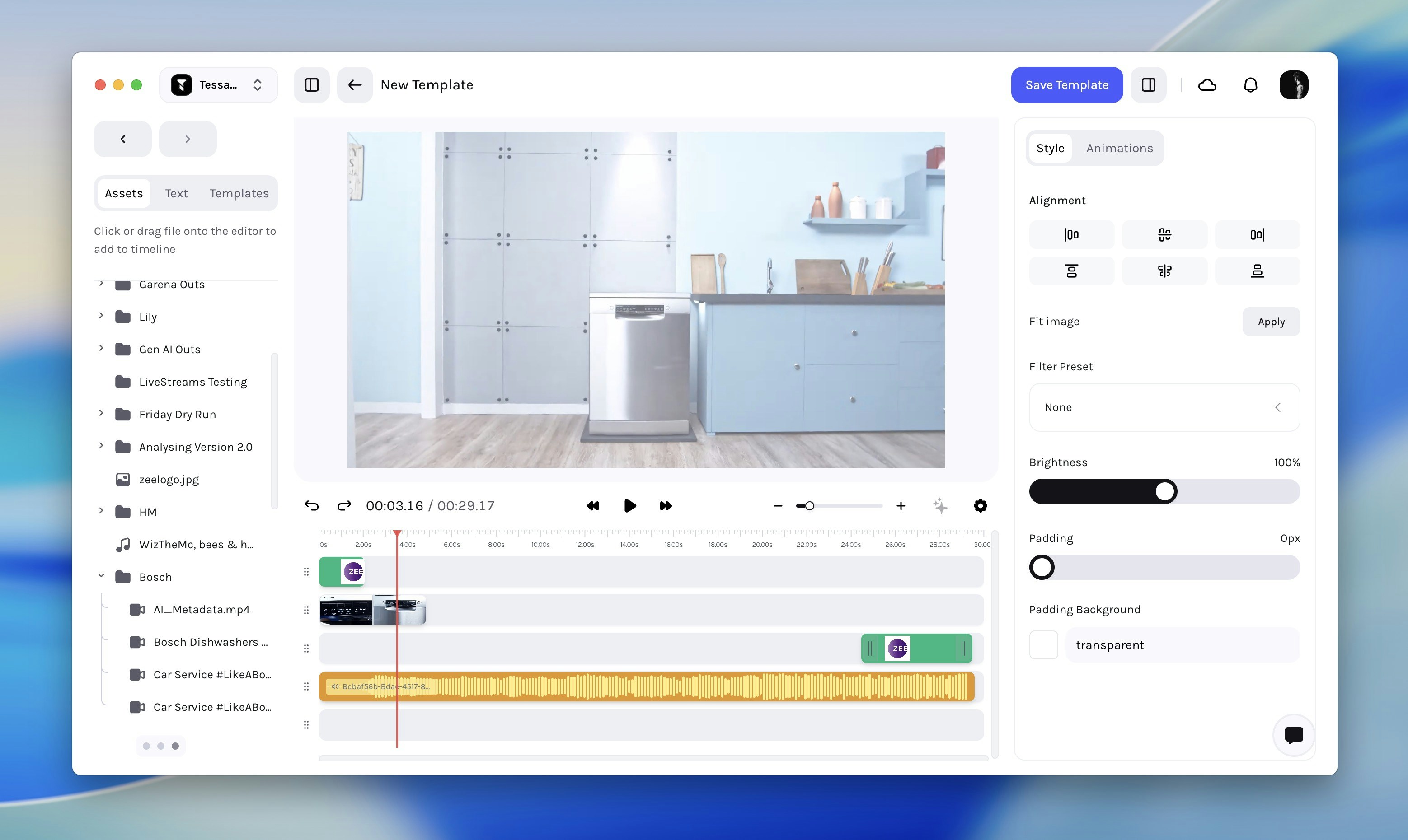
Save the template
Click Save Template. In the modal, enter a name, description, and edit template instructions if needed.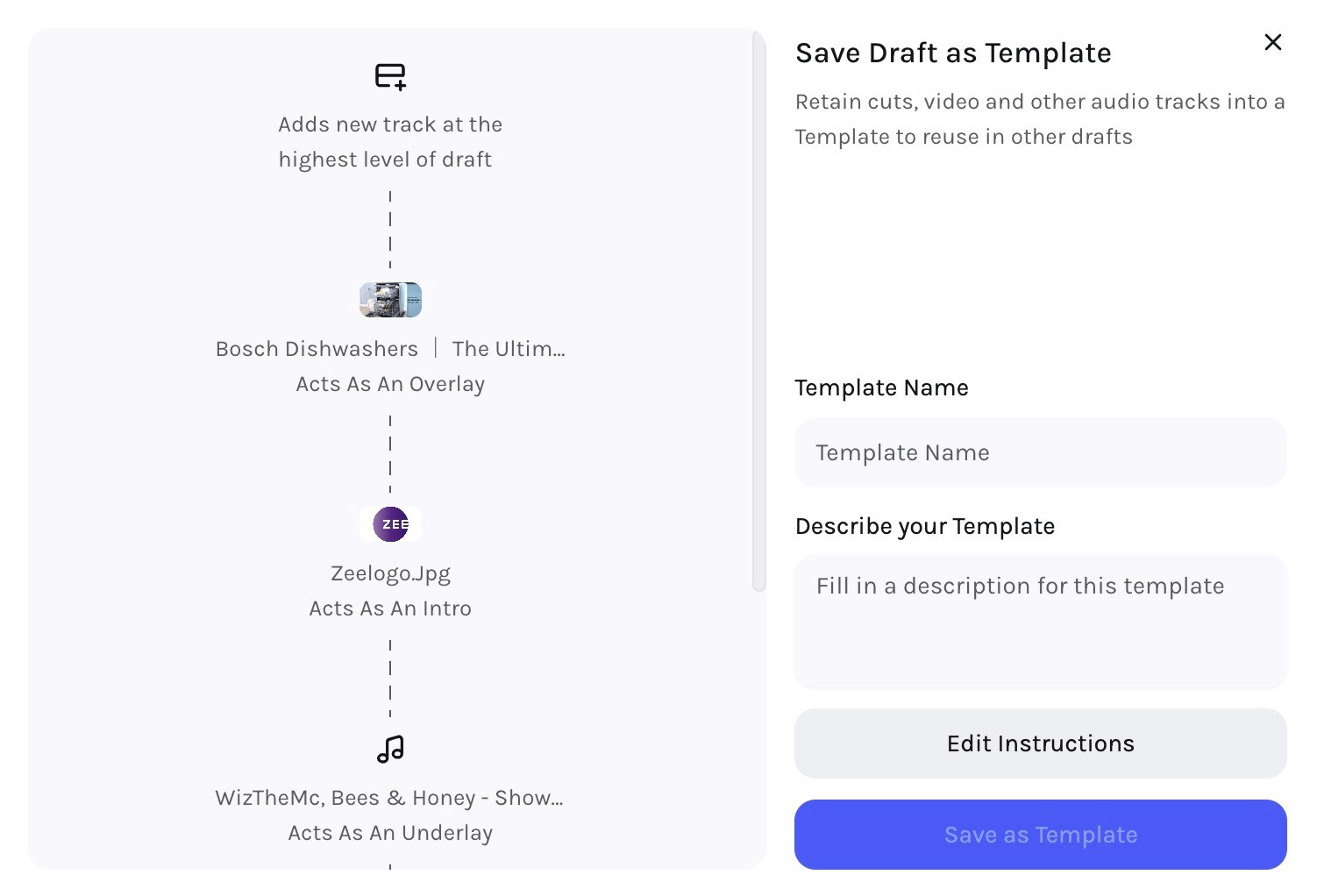
Dynamic text in the editor
Auto‑populate text fields based on the prompt and draft content. Inside templates, dynamic text adapts to each asset for consistent, on‑brand outputs. Enable Dynamic text on any Text Layer (added by pressing T on the timeline) on the Properties panel on the right side. Once Dynamic Text is enabled, the content of that Text Layer will be automatically populated based on the prompt and draft content.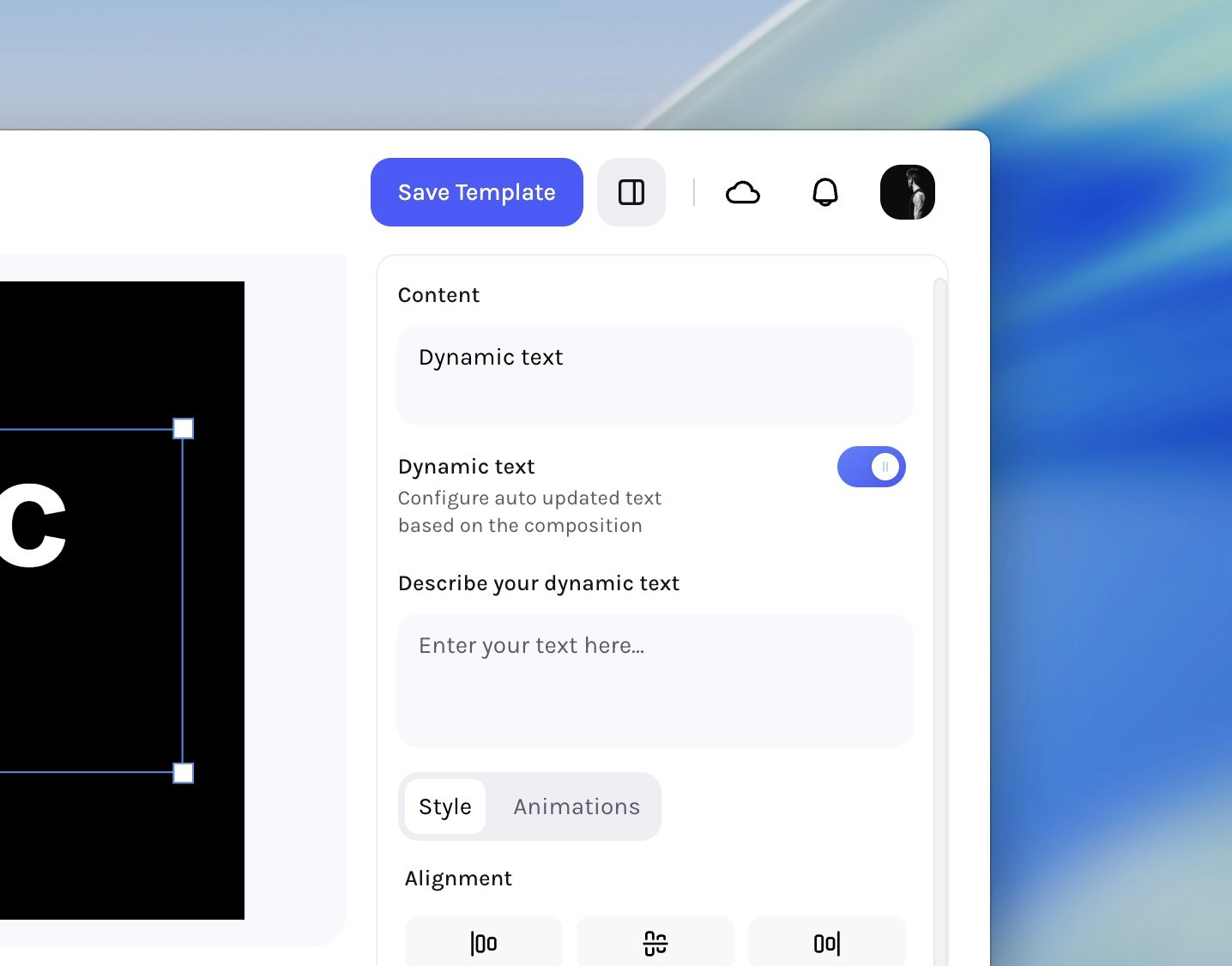
Audio analysis
Tessact AI can now analyse audio‑only files to get contextual understanding that enables downstream use-cases like AI Metadata Autofill, and subtitle localisation.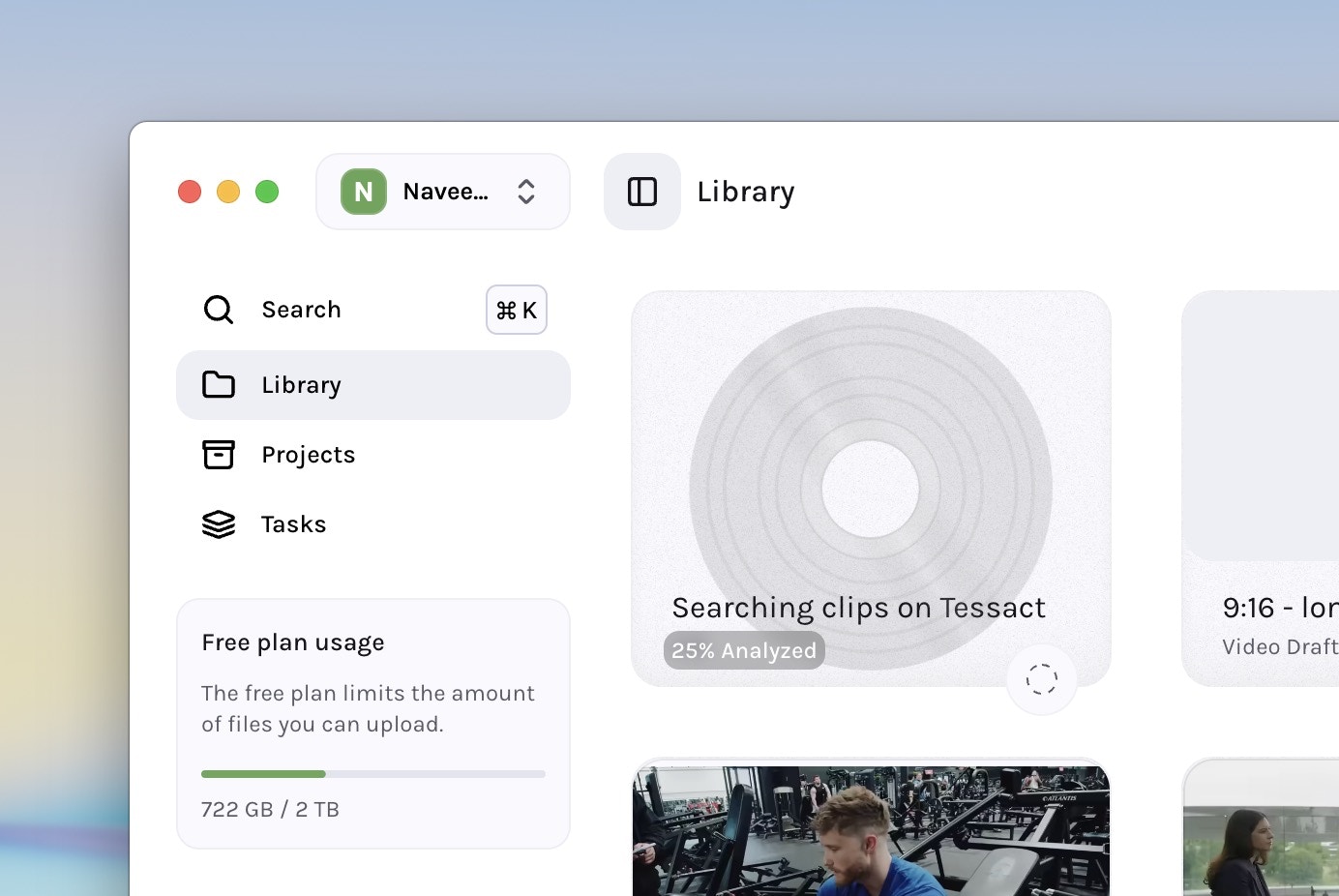
Global render queue
Track all renders in one place from anywhere in the app. Monitor progress without changing context.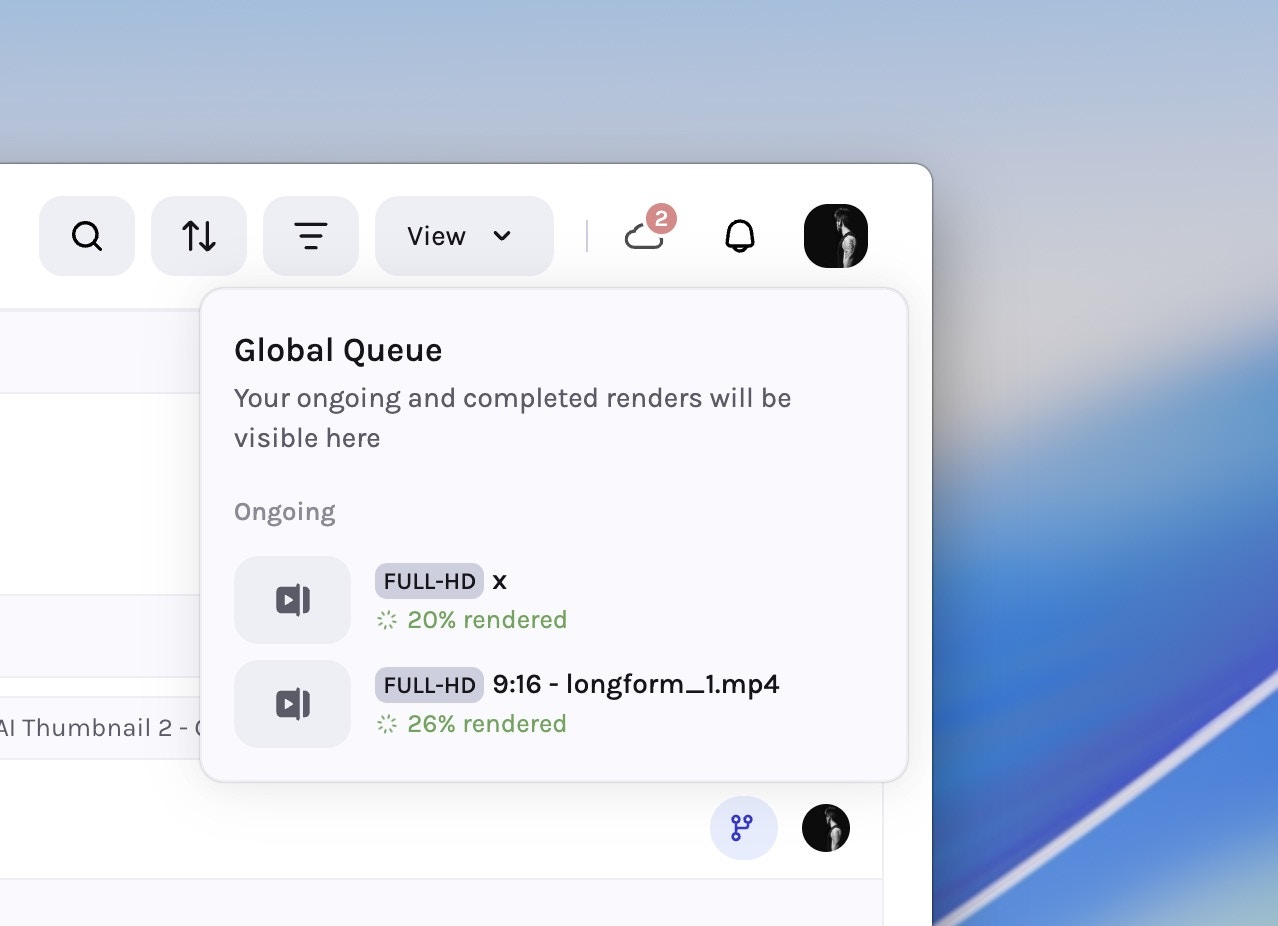
Enhancements
- Auto video scaling — When a template’s aspect ratio differs from the draft, choose a scaling preference: Fit, Fill, or Proportional.
- Workflows — clearer step creation — The step‑creation flow is clearer and more structured, making step types and outcomes easier to understand.
- Added the ability to download transcripts in plain paragraph format.