

Documentation Index
Fetch the complete documentation index at: https://docs-dev.tessact.ai/llms.txt
Use this file to discover all available pages before exploring further.
Overview
Custom statuses let you translate how your organisation tracks asset progress directly into Tessact’s Library. Instead of being limited to default labels, you can now define the precise stages your editors, compliance teams, or delivery partners recognise—plus the colours and icons that make those stages scannable at a glance.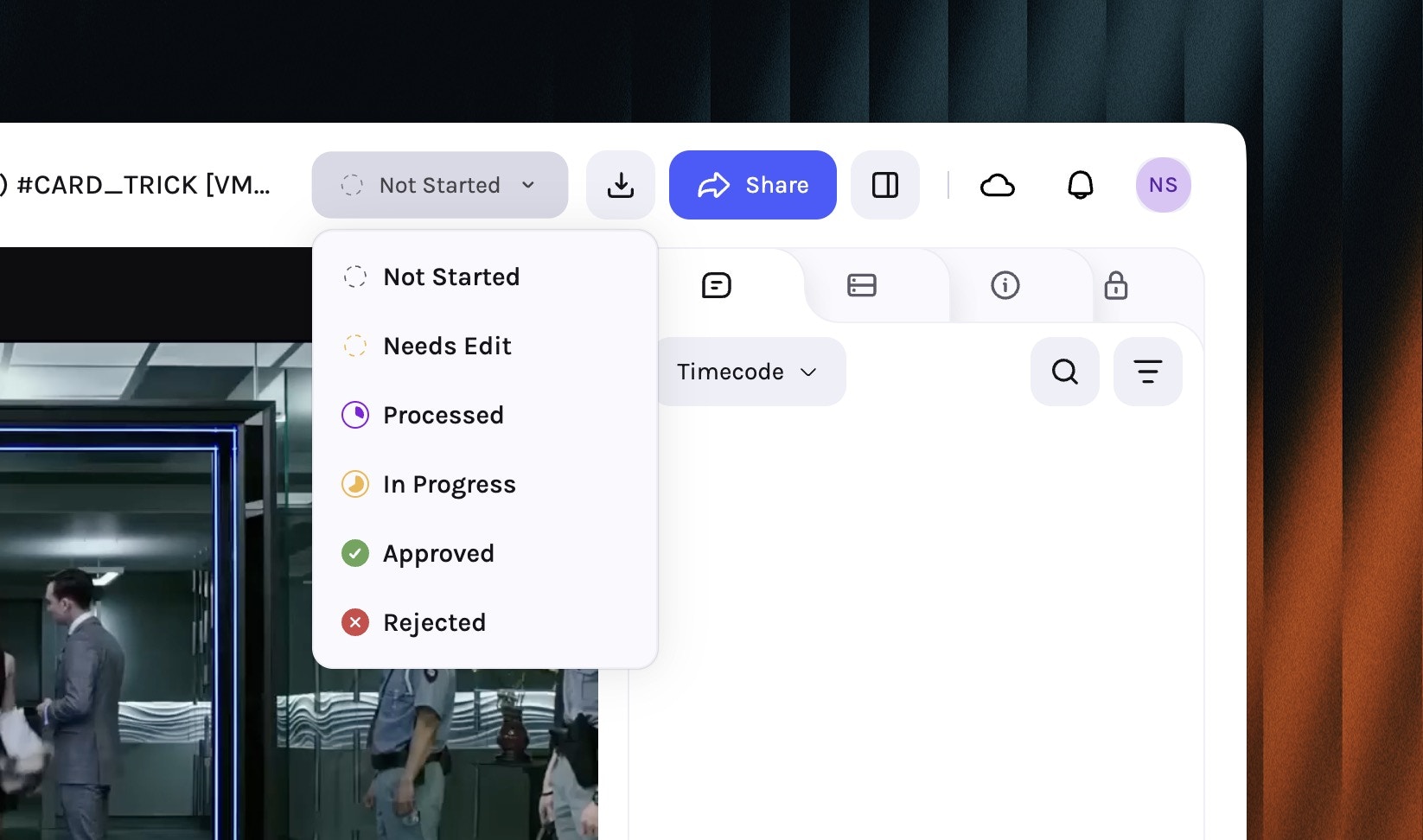
- Clarity in context: Status pills render next to every asset card/row so teams instantly know where work stands.
- Filterable metadata: Status becomes a first-class filter in Grid/Table views, quick search, and exports.
- Automation-ready: Every status value emits events you can capture via Zapier integrations or multi-agent Workflows to move work forward automatically.
Configure statuses in Settings → Library
Custom statuses live under Settings → Library → Statuses. Tessact stores the entire catalogue per workspace, so every team draws from the same canonical list.Open Settings → Library
Navigate to Settings → Library and open the Statuses panel to review existing options.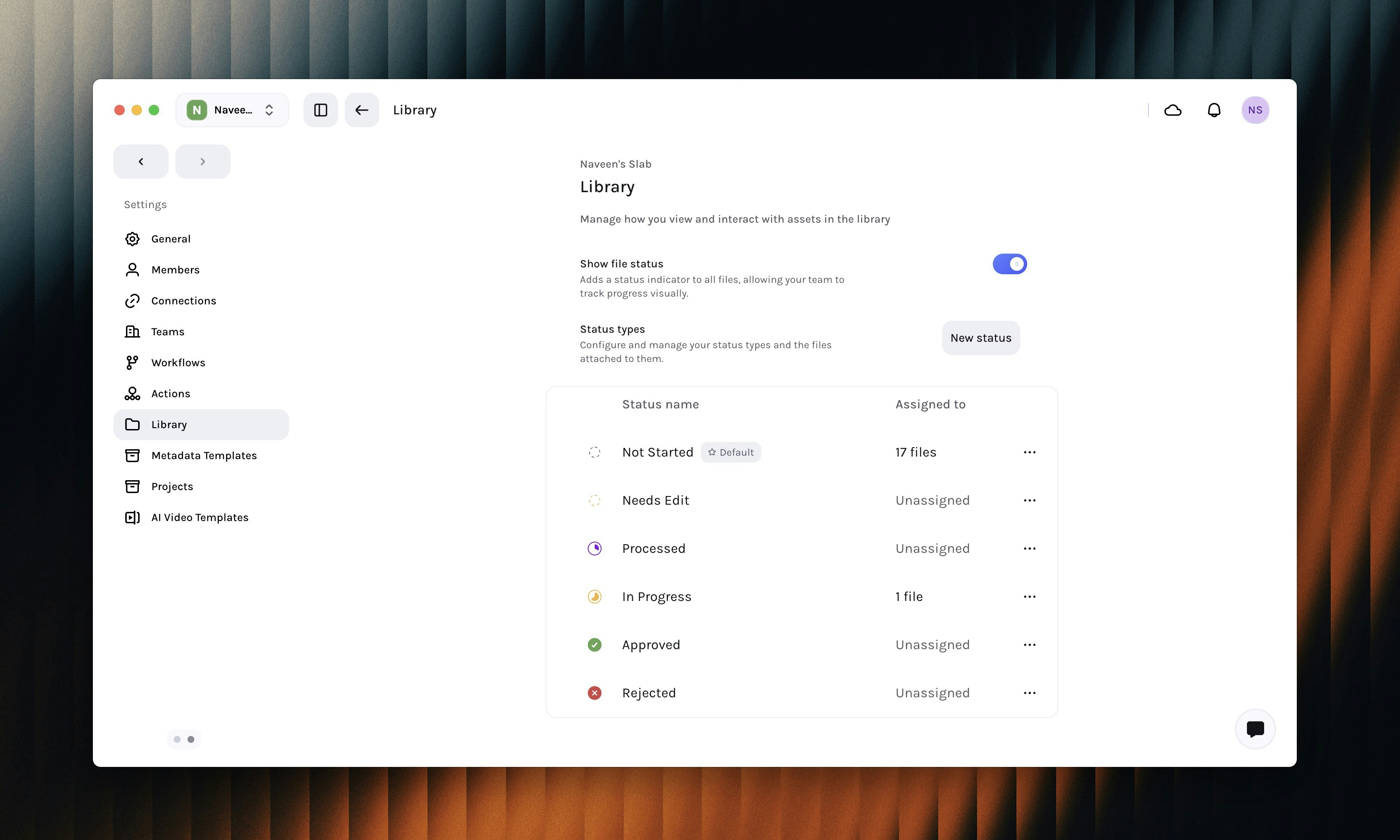
Create a new status
Click New Status to add another milestone to the catalogue. Give it a clear name, pick an icon, and choose a colour that contrasts with your other statuses.
Set defaults and ordering
Turn on Set as default if every new asset should begin in this state. Drag the handle on the left of each status to reorder the list; that order flows through to pickers in the Library.
Apply statuses inside the Library
Statuses are editable anywhere you work with assets:- Single asset
- Bulk update
Open an asset preview or details drawer and choose a new value from the Status dropdown. Changes apply instantly and log to the asset history.
Automation, workflows, and notifications
Custom statuses become powerful once you wire them into downstream systems:- Workflow triggers: Status changes can act as Inputs/Outputs in Multi-Agent Workflows. For example, emit Promo.QC → Output: QC_Passed to automatically start a Publish step.
- Zapier & webhooks: The Zapier connector exposes File status change events, so you can branch automations based on your custom labels (e.g., ping localisation vendors when status becomes Ready for Dubbing).
- Notifications & dashboards: Saved searches, dashboard widgets, and SLA alerts can key off statuses, ensuring stakeholders only see the slices of work relevant to them.
Whenever you add a new status in Settings, it is instantly available in workflow wiring, API responses, exports, and third-party automations.
Sample status recipes
| Stage | Suggested statuses | Why it helps |
|---|---|---|
| Ingest & prep | Ingesting, Needs metadata, Legal hold | Differentiate files still processing from ones blocked for policy reasons. |
| Editorial | Edit in progress, Needs review, Revision requested | Mirrors creative checkpoints so producers can filter for tasks that require action. |
| Compliance & QC | QC scheduled, QC hold, QC passed | Keeps compliance managers aligned on where each asset sits in the queue. |
| Distribution | Ready for dubbing, Ready for publish, Delivered | Signals when downstream systems should pick up or archive assets. |
Governance best practices
- Keep the list lean: Aim for 6–10 active statuses so filters stay meaningful. Retire unused ones via the ⋯ menu.
- Name with verbs: Labels like Needs edit or Ready to publish make it obvious who should act next.
- Document ownership: Pair each status with an owner or team in your operating playbooks so hand-offs are clear.
- Review quarterly: As workflows evolve, revisit colours, order, and defaults to match current processes.
Related guides
Master the Library
Learn how grid and table views expose status metadata across millions of assets.
Automate with Workflows
Wire custom statuses into multi-step, multi-agent automations.
Connect downstream tools
Use Zapier to notify teams or external systems whenever a status changes.
With custom statuses in place, your Library mirrors the exact lifecycle your teams already follow—making it easier to see blockers, automate repetitive hand-offs, and deliver assets faster.