

Documentation Index
Fetch the complete documentation index at: https://docs-dev.tessact.ai/llms.txt
Use this file to discover all available pages before exploring further.
Overview
The Library is Tessact’s main workspace for storing and operating on media. It brings together folders, uploads, metadata, review, and access controls in one place so teams can move from ingest to collaboration without switching tools.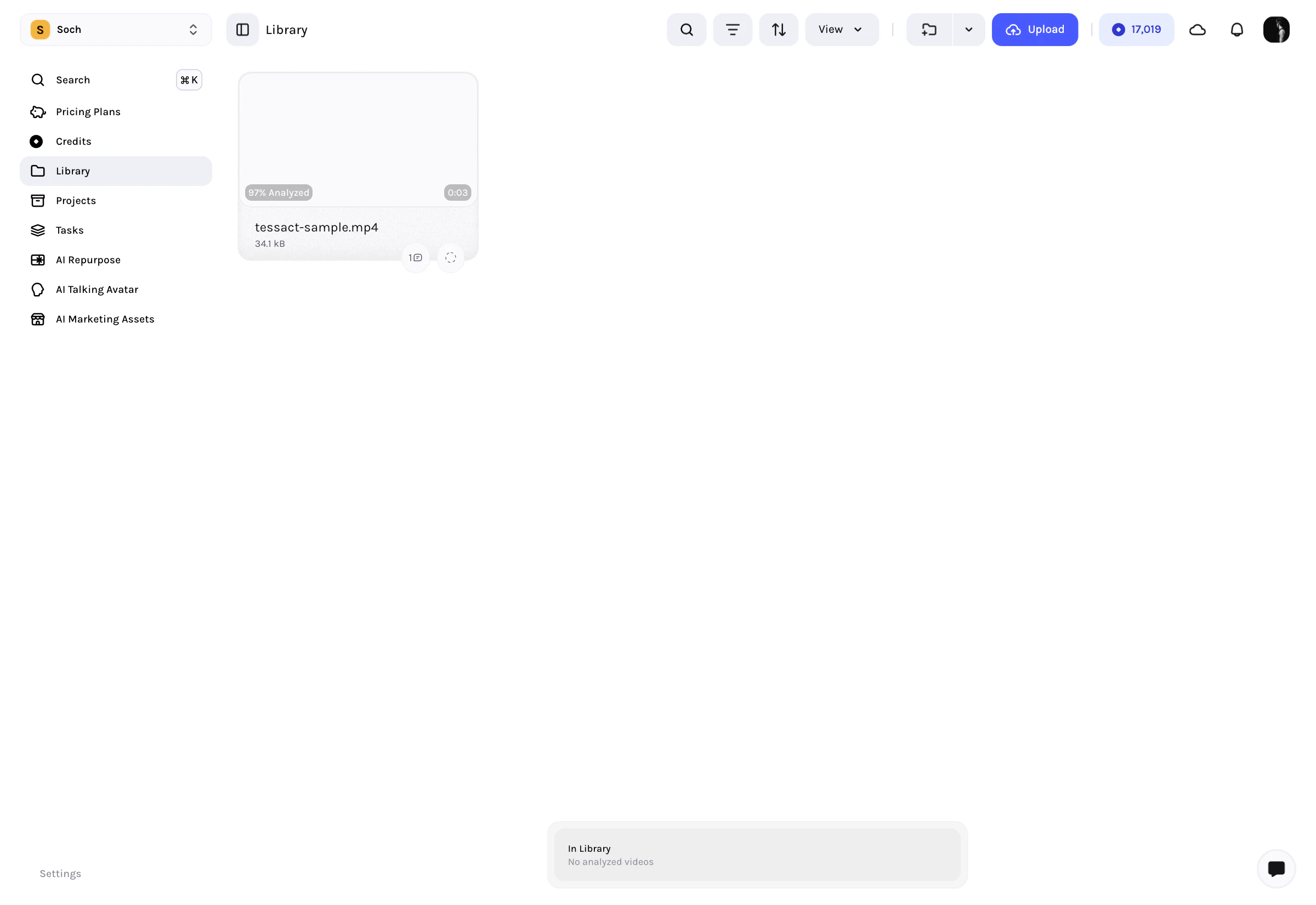
What You Can Do In The Library
- Browse folders and files in grid or table view.
- Upload assets directly into the current location.
- Search, filter, sort, and group assets using metadata.
- Open any asset into a dedicated detail page for preview, comments, metadata, and technical information.
- Update statuses, apply templates, and manage access without leaving the asset.
The Library is not just a browser. It is also where the core review workflow starts: open an asset from the Library to comment, inspect detections, and work with metadata.
Selecting a View
Tessact offers two main presentation modes:| View | Best for | Key controls |
|---|---|---|
| Grid | Visual browsing, marketing teams, thumbnails | Card orientation, thumbnail fit/fill, flatten folders |
| Table | Metadata-driven work, archivists, compliance | Column selection, pinning, custom metadata views |
Grid View Options
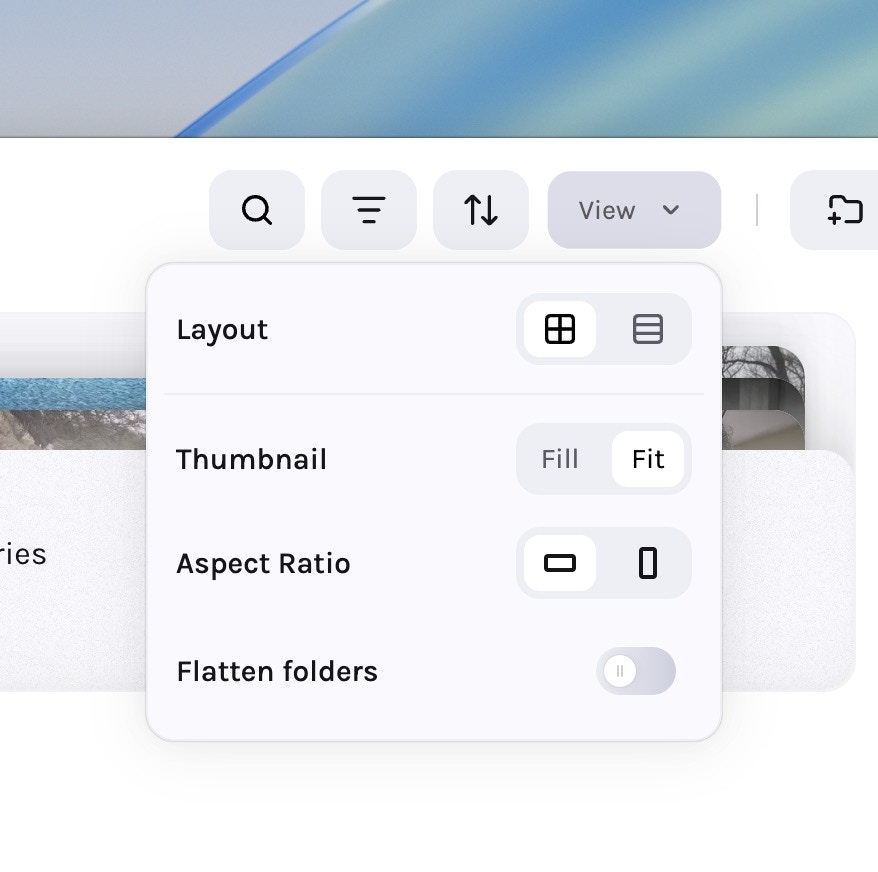
- Vertical vs. Horizontal cards — Optimise for portrait or landscape material.
- Fit vs. Fill thumbnail — Choose letterboxed accuracy or edge-to-edge crop.
- Flatten folders — Display every asset in the hierarchy as a single scrollable wall.
Table View Customisation
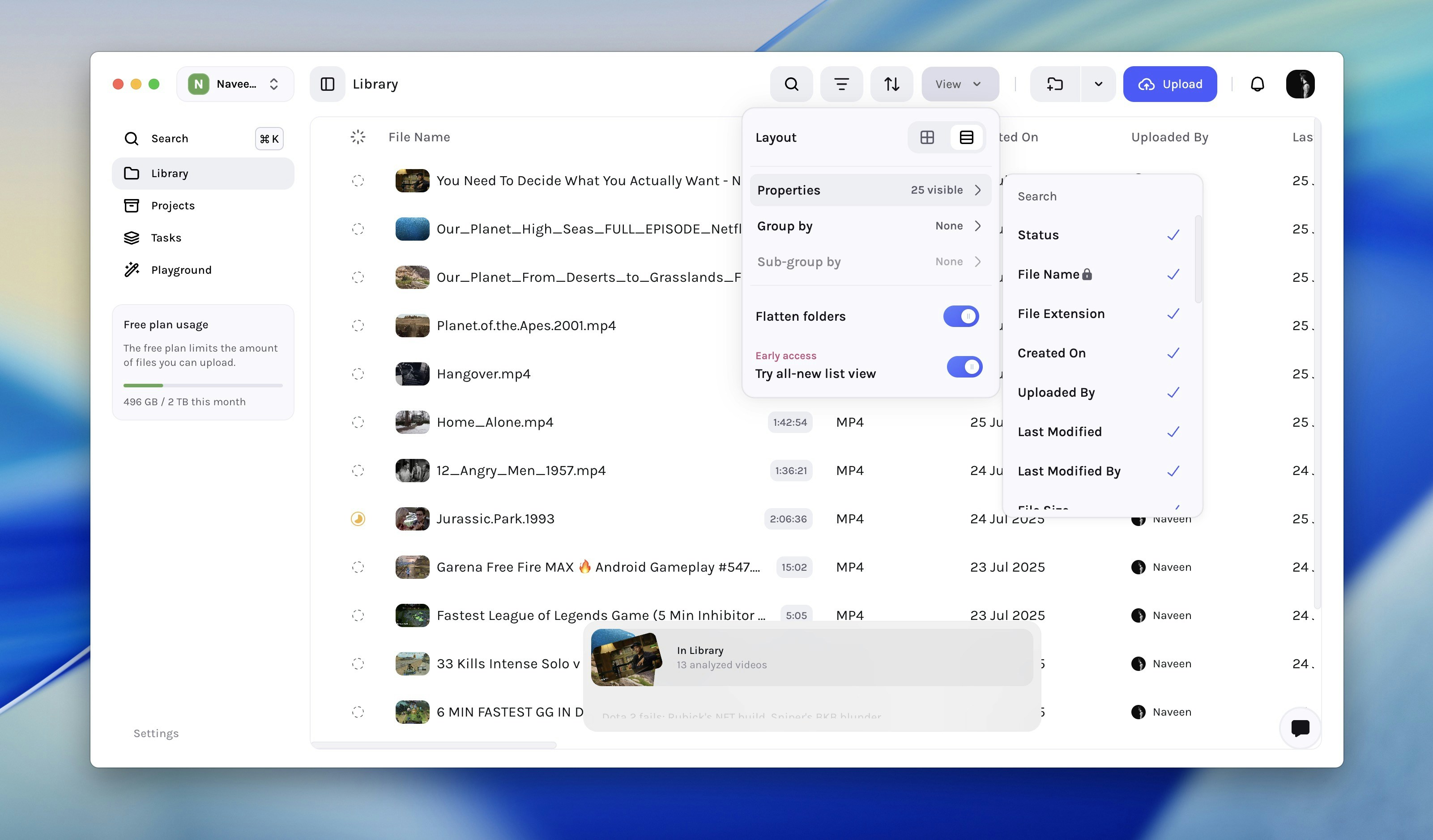
- Select View → Properties to add metadata fields to the table.
- Pin a column from its ⋯ context menu to keep key fields visible while scrolling.
- Reorder columns from the same menu to match each team’s workflow.
- Use the Sort and Filter controls in the top action bar to refine the current result set.
- Group and sub-group rows by metadata when you need an editorial, operational, or compliance-driven view of the same assets.
The table can mix built-in fields such as name, creator, file type, and dates with custom metadata fields configured for your workspace.
Sorting, Filtering, and Search
The action bar at the top of the Library is the main control surface for narrowing large result sets:| Control | Behaviour |
|---|---|
| Search | Search assets by name and other indexed fields visible in the Library workflow. |
| Filter | Add multiple filters across built-in fields, technical metadata, and custom metadata fields. |
| Sort | Add one or more sort criteria. The order inside the Sort bar defines precedence (primary, secondary, tertiary, etc.). |
| Upload | Upload new assets to the Library from your current device. For recommended file formats, see Media Formats. |
| New Folder | Create a new folder in the current path. |
Folder Navigation
- Once you navigate into any folder in the library, the sidebar changes to show a tree view with the current folder selected.
- Toggle Flatten folders to surface every asset in descendant directories without changing sidebar context.
Open An Asset
Click any asset to open its dedicated detail page. Tessact then gives you a larger working surface with:- Preview for video, audio, images, documents, or other supported file types
- Comments for review and threaded collaboration
- Metadata for custom fields, templates, and AI-assisted entry
- Technical metadata for codec, bitrate, duration, and file-level details
- Access controls when your role includes security permissions
Bulk Actions & Context Menus
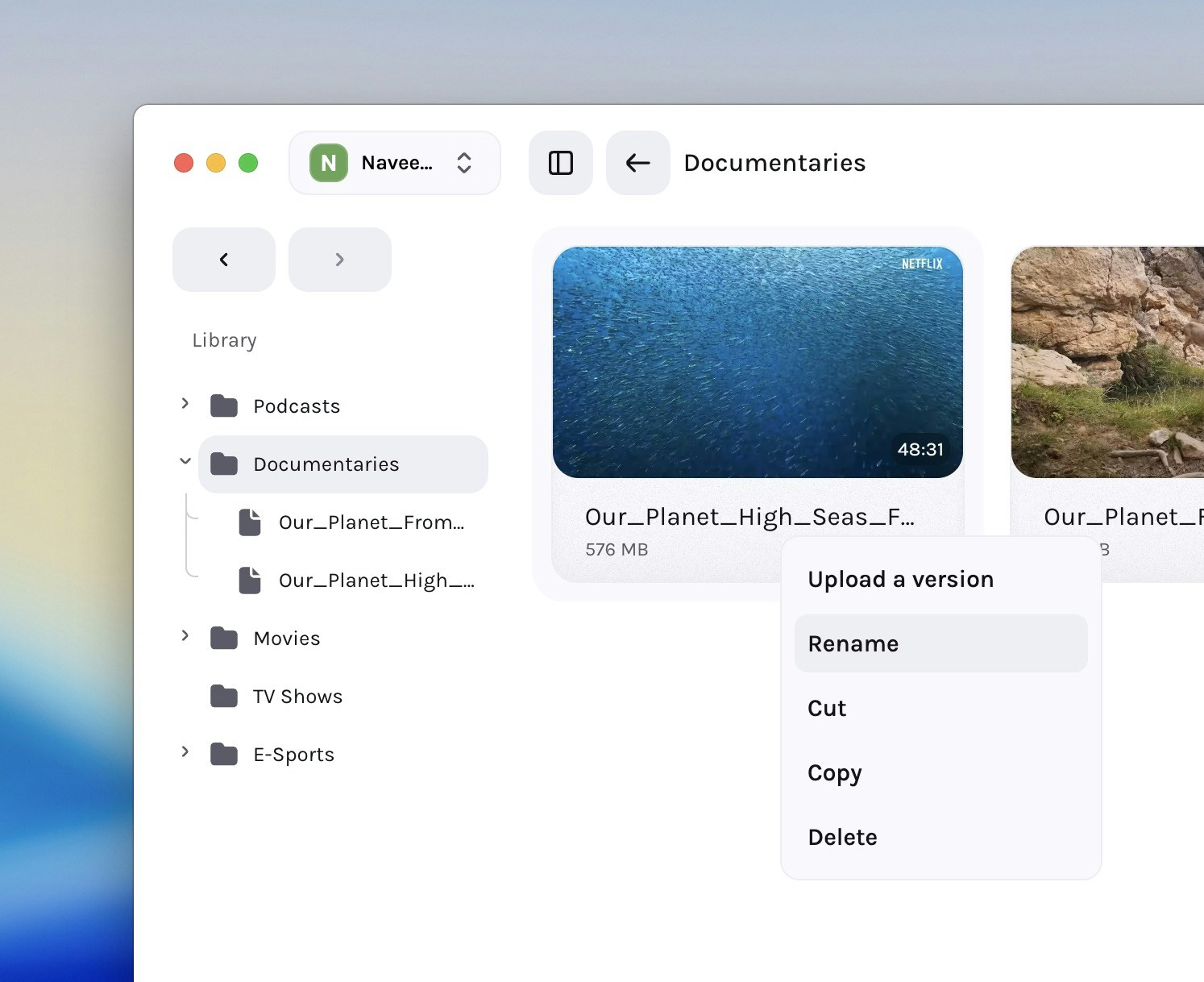
Multi-select operations
- Select multiple assets via checkboxes or drag selection.
- The select bar appears at the bottom of the screen with a few options:
| Action | Description |
|---|---|
| Cut / Copy / Paste | Move or duplicate assets within the Library. |
| Delete | Remove assets or folders from the current workspace location. |
| Rename | Update names without opening a separate editor. |
| Select all | Apply bulk actions across the current result set. |
| Status updates | Update custom file statuses directly from supported views. |
Performance at Scale
- Virtual scrolling renders only visible rows/cards for smooth performance on huge libraries.
- Progressive loading keeps long folders usable while more content streams in.
- Background fetching keeps permissions, thumbnails, and sub-content data fresh as you browse.
- Live status refresh updates ingest and indexing progress while uploads and analysis are running.
Next steps
Review assets with comments
Learn how comments, mentions, markers, and timed feedback work on asset pages.
Create custom statuses
Model editorial and approval stages directly inside the Library.
Search with AI
Jump from the Library into scene-aware search when keyword search is not enough.
Connect cloud storage (S3)
Integrate external AWS S3 storage with your Library.
You can now navigate, customise, and perform bulk actions in the Library with confidence. Explore the links above to extend your workflow.