

Documentation Index
Fetch the complete documentation index at: https://docs-dev.tessact.ai/llms.txt
Use this file to discover all available pages before exploring further.
Before you begin
Before you get started, make sure you have:- An Invitation email — You must receive a Tessact invite from our team before you can sign up.
Request an invite from our team
- Your assets — You can upload any media file to Tessact. However for best performance, we recommend H.264/AAC
.mp4under 12 Mb/s. For more information see supported media formats.
1. Set up your account
When you log in to tessact for the very first time, you will be asked to set up your account.- Sign up from an invitation email
- Sign up with a registered email
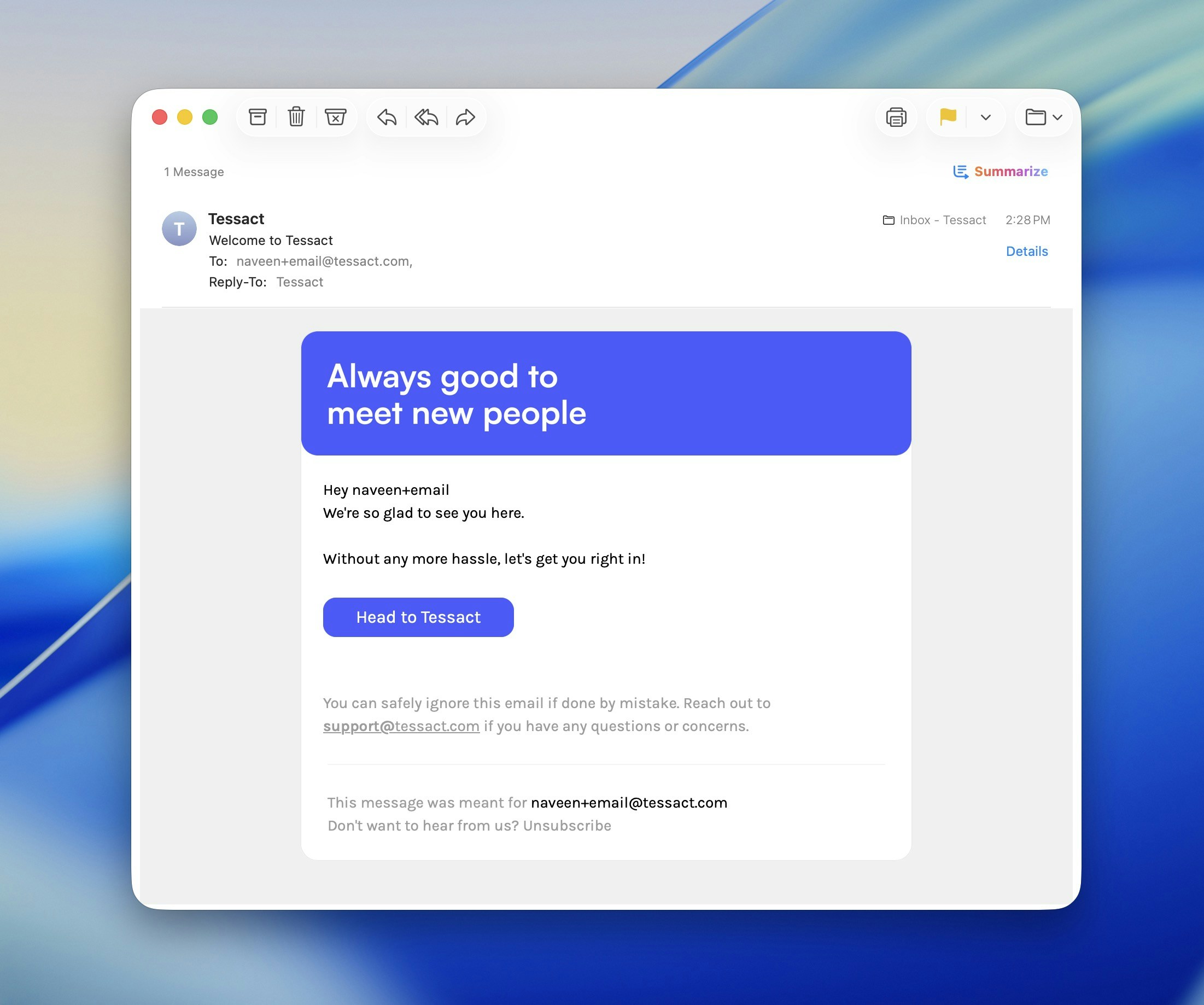
Open the invitation email
Click Head to Tessact.If you don’t see the email, check your spam or promotions folder.
If your invite is no longer valid, go to https://app.tessact.ai/login → Login with OTP → enter your email → use the one-time code sent to you.
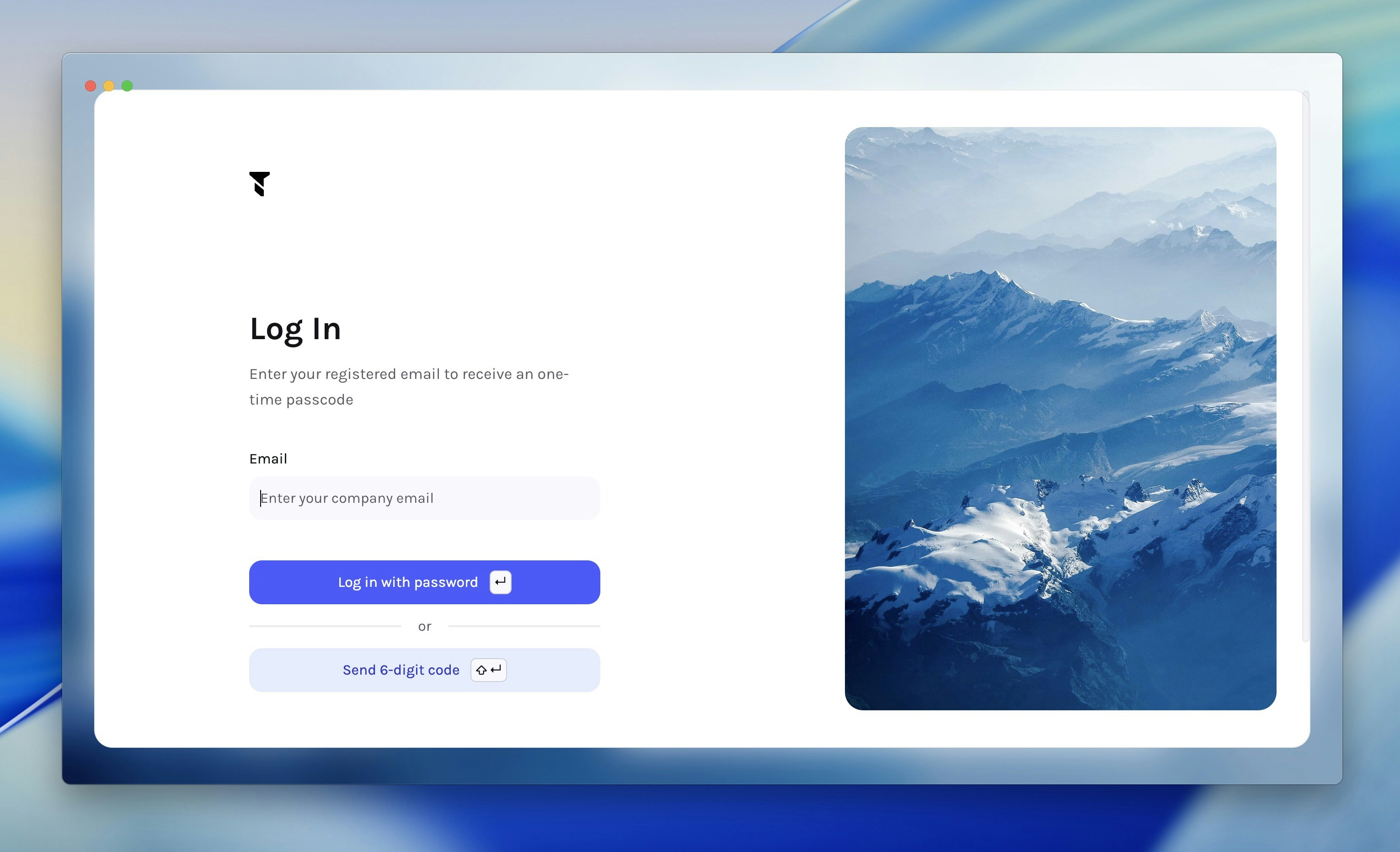
2. Explore the Library
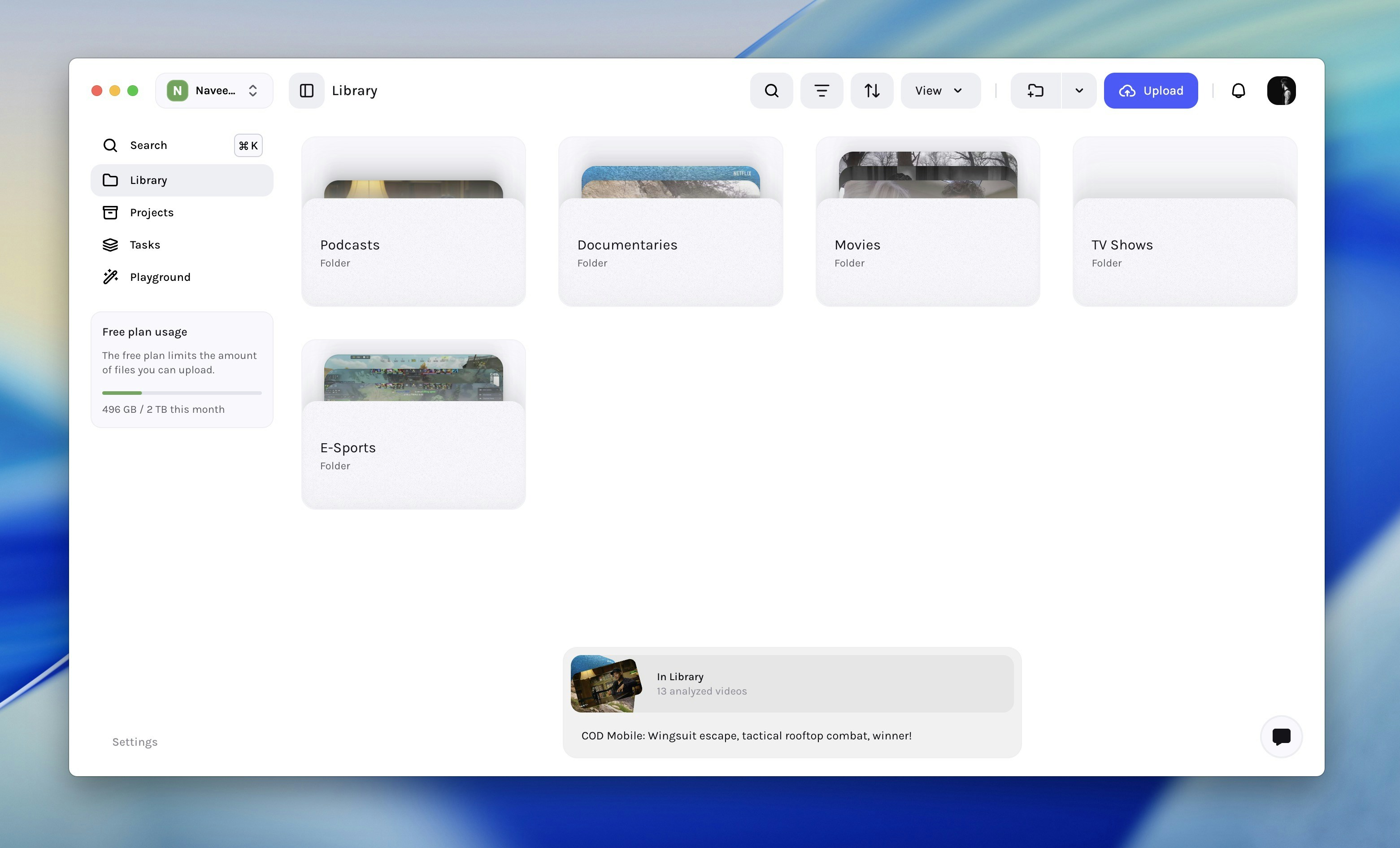
- Notice the Upload button and drag-and-drop zone.
- AI status badges display ingest, transcode, and analysis progress for each asset.
Delete any sample assets if you don’t need them via ⋯ → Delete.
3. Upload your first asset
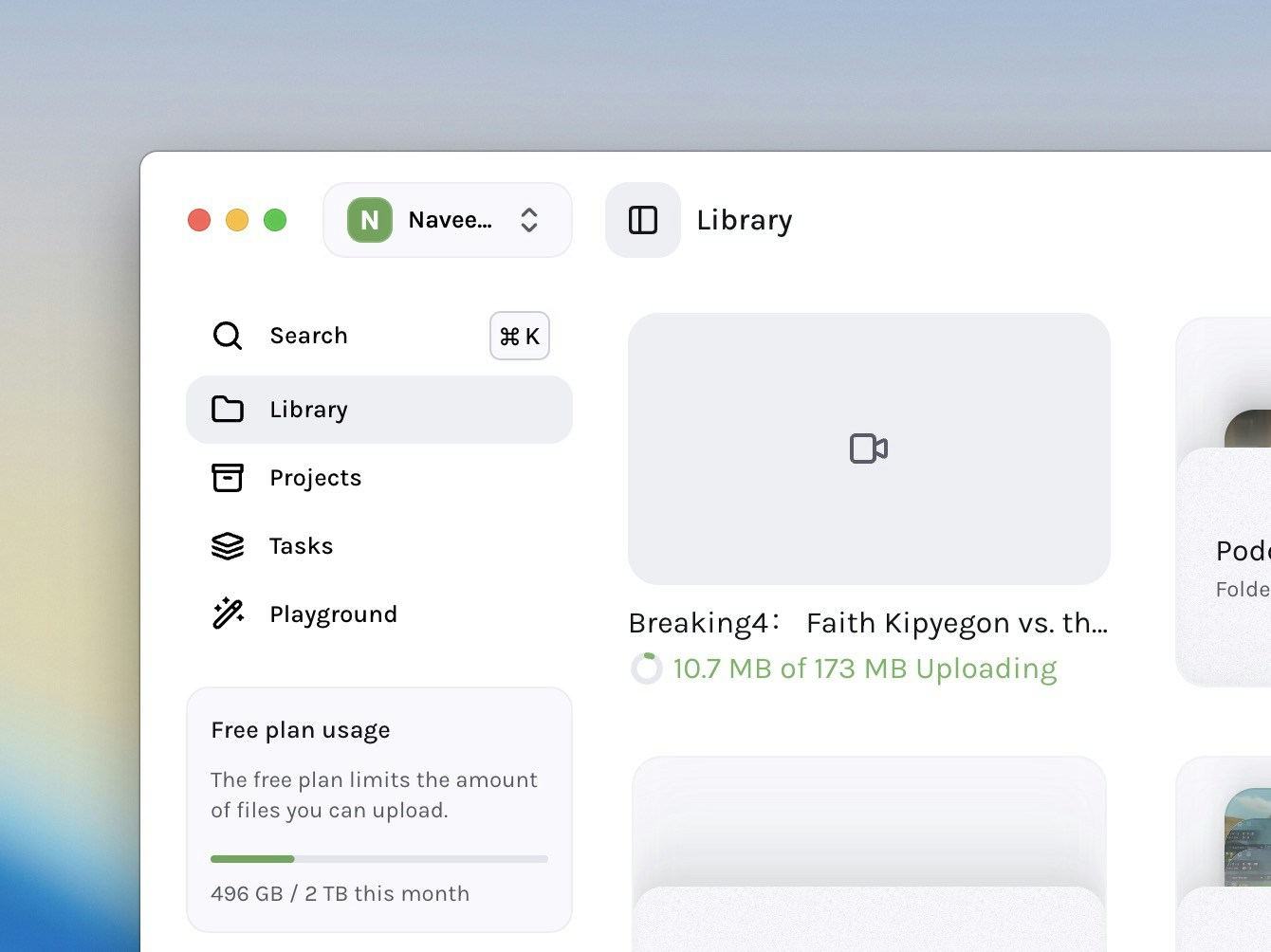
Wait for analysing to finish
Tessact uploads and queues the file for AI analysis. A progress pill appears on the asset card showing the progress of the analysis.
Average analysis speed is ≈ 15 minutes per hour of H.264/AAC content under
10 Mb/s. Non-preferred codecs or higher bitrates trigger
transcoding and extend processing time.
4. Trigger AI actions
Once your asset is analysed, you can trigger AI actions on it.Remix (create social clips)
Once analysing is finished, you can see the Remix bar at the bottom of the screen. Hovering on the suggestions will show you more suggestions for clips you can create with AI, or allow you to write your own prompt.Explore Remixes
Learn more about how Tessact’s Remix AI works.
Prompting Guide
Learn more about how to write prompts for Tessact’s Remix AI.
Hover over the remix suggestions on the remix bar
Pick a suggested prompt from the list or write your own (e.g., “Generate a
15-sec teaser”).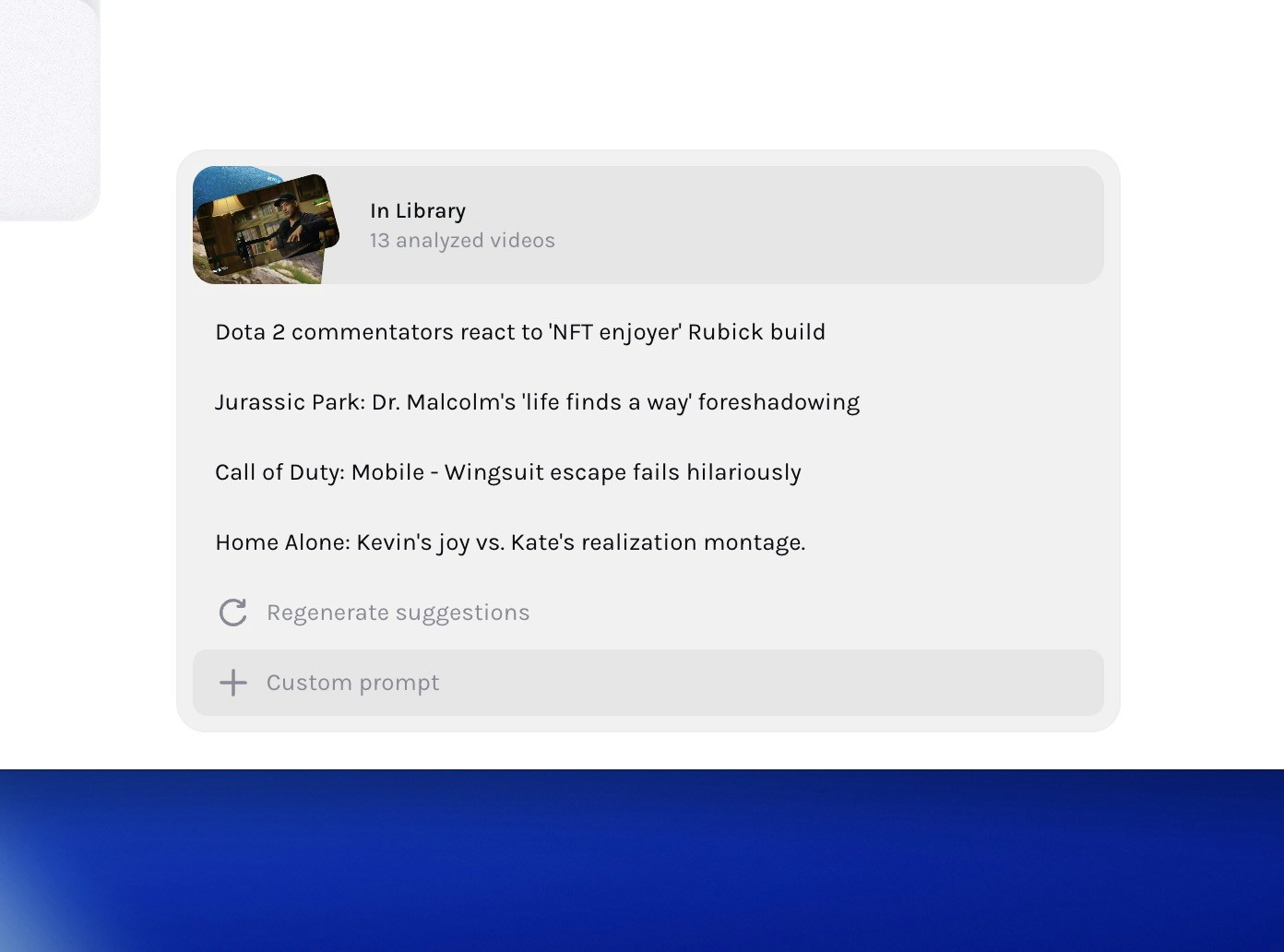
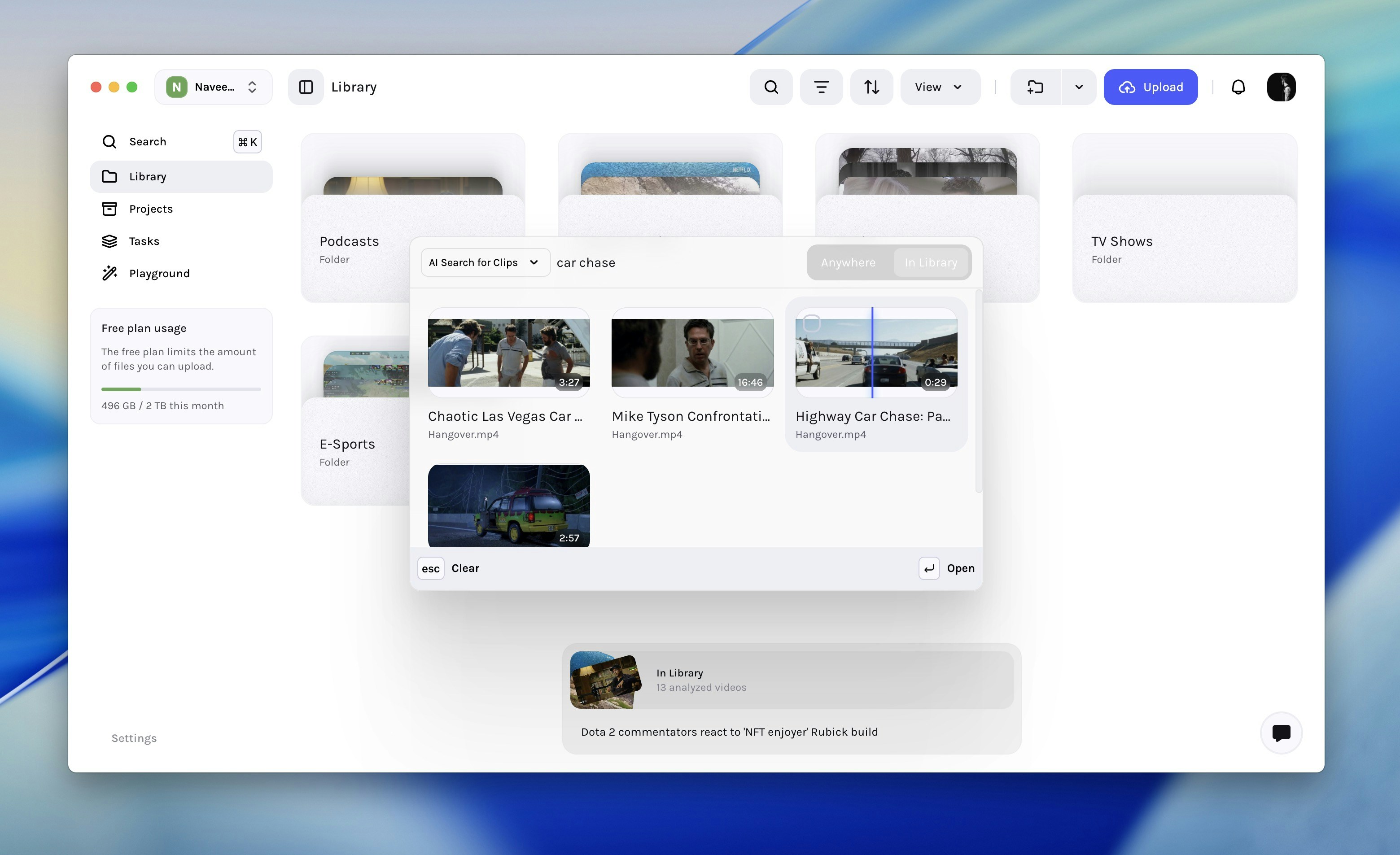
AI Search for clips
AI search for clips is a powerful way to find the perfect clips for your next project. It works on not just the content in each scene, but also on the contextual understanding of the scene in relation to the overall content.Explore AI Search
Learn more about how Tessact’s AI search works.
Open the AI Search dialog
Press ⌘/Ctrl + K → AI Search for clips
or
Click the Search item on top of the left sidebar to open the AI Search dialog.
or
Click the Search item on top of the left sidebar to open the AI Search dialog.
AI Autofill metadata
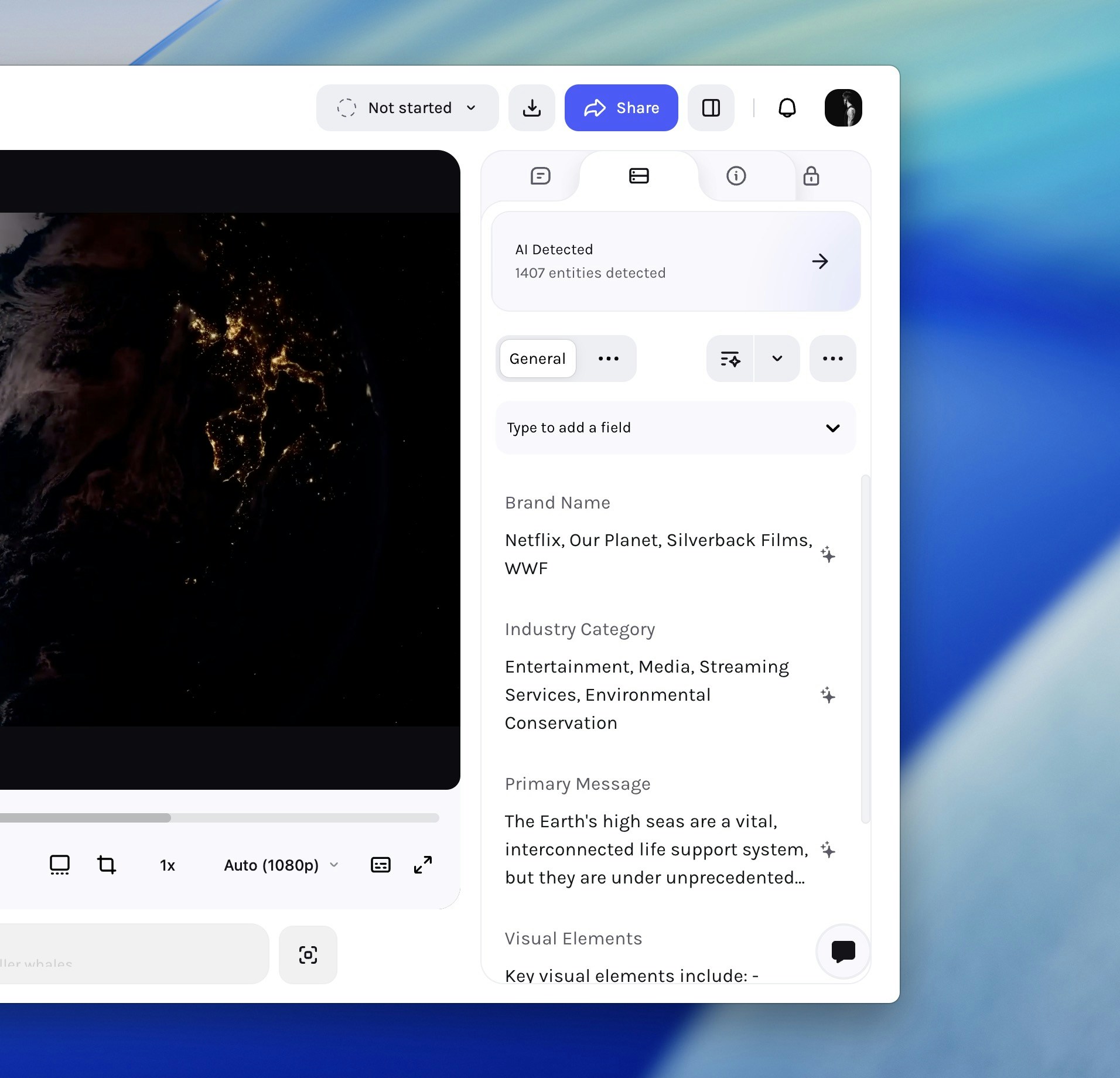
Tessact’s deep understanding of video content allows it to automatically fill in any kind of metadata fields for you. Tessact is especially good at extracting qualitative as well as extremely accurate quantitative metadata (like timeframes, scores, and more) from videos.Explore AI Autofill
Learn more about how Tessact’s AI Autofill works.
Metadata Management
Learn more about managing metadata in Tessact.
Open the asset detail page → Metadata tab.
Clicking on any asset in the library will open the asset detail page. The asset detail page has a Metadata tab on the right panel that allows you to edit the metadata fields associated with the asset.
Start from scratch or select a pre-defined template
Click on the Start from scratch button to start from scratch and add your own fields, or select a pre-defined template from the list below.
You’ve uploaded your first asset, watched Tessact analyze it, and run AI
actions—all in just a few minutes. Continue by connecting cloud storage or
designing your own multi-agent workflow.
Next steps
Sync an S3 bucket
Follow the S3 Connections setup to connect your cloud storage.
Build multi-agent workflows
Open Workflow Builder and see Creating Workflows to automate your processes.
Invite teammates
Go to Settings → Users for User Management and collaboration.
Deep-dive AI actions
Review AI Agents in Workflows to explore advanced AI capabilities.