

Documentation Index
Fetch the complete documentation index at: https://docs-dev.tessact.ai/llms.txt
Use this file to discover all available pages before exploring further.
Overview
Workspace settings are the controls that affect how a shared Tessact workspace behaves for everyone inside it. Open Settings from the main navigation to configure branding, membership, library behavior, connected tools, and other workspace-level systems.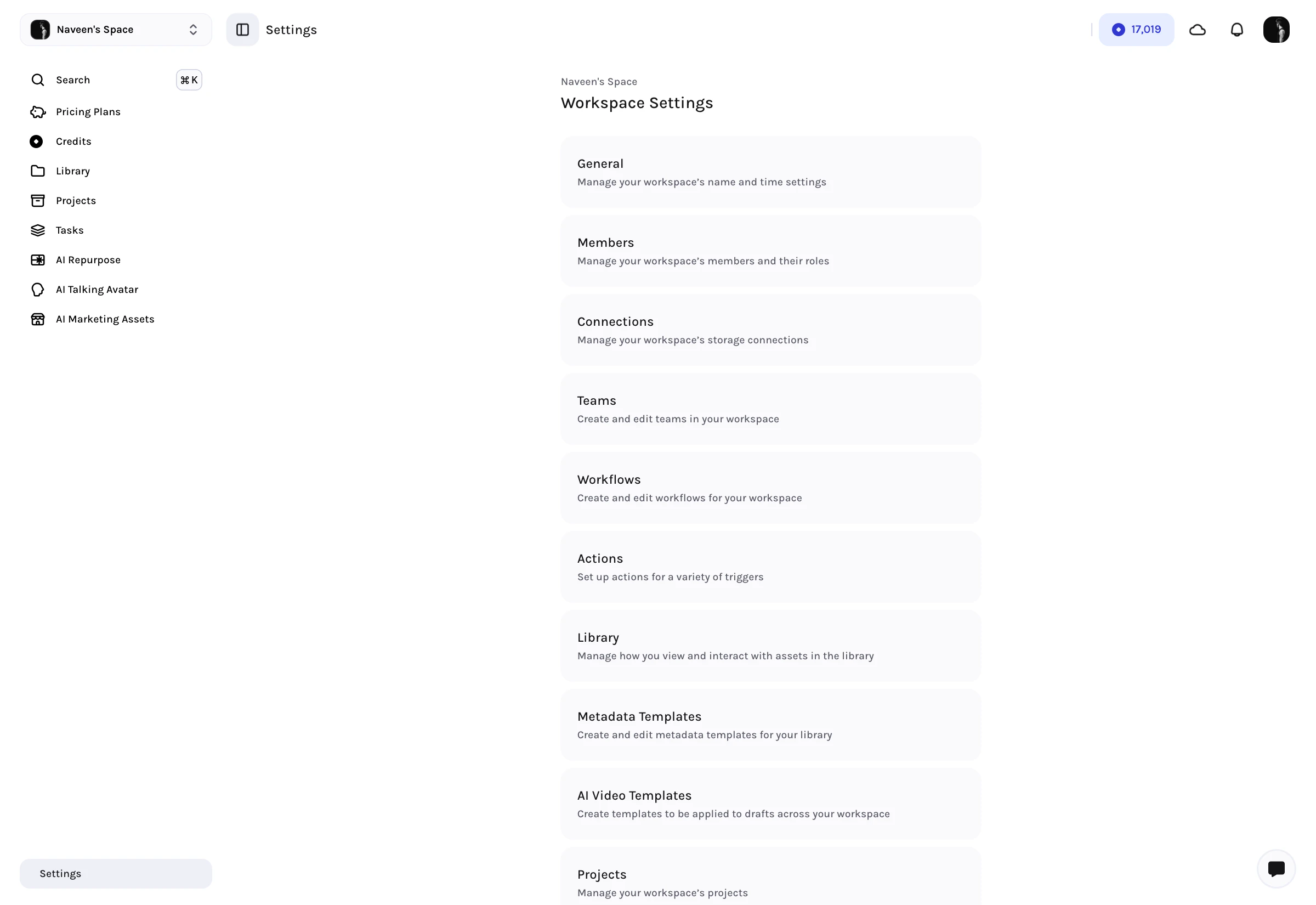
Open Workspace Settings
- Open any workspace in Tessact.
- Click Settings in the left navigation.
- Select the area you want to manage from the settings hub or sidebar.
What Lives In Workspace Settings
The exact sections visible to you depend on your permissions and subscription plan.| Section | What it controls | Availability |
|---|---|---|
| General | Workspace logo, name, timezone, watermarking, and other shared defaults | Available broadly |
| Members | Add users, search members, and manage workspace roles | Available broadly |
| Teams | Team creation and organization inside the workspace | Pro and Enterprise |
| Connections | Storage and external content connections | Enterprise |
| Workflows | Workspace workflow configuration | Enterprise |
| Actions | Trigger-based automations and actions | Enterprise |
| Library | File status visibility and status management | Enterprise |
| Metadata Templates | Reusable metadata schemas for library workflows | Enterprise |
| Projects | Workspace-level project configuration | Enterprise |
| AI Video Templates | Templates used across workspace video generation flows | Enterprise |
| Social Accounts | Channel groups and publishing connections | Available when social publishing is enabled |
If a section is missing, the most common reason is plan level or permissions. Tessact only exposes settings that the current user can actually act on.
General Settings
The General page is the main place for shared workspace identity and default behavior.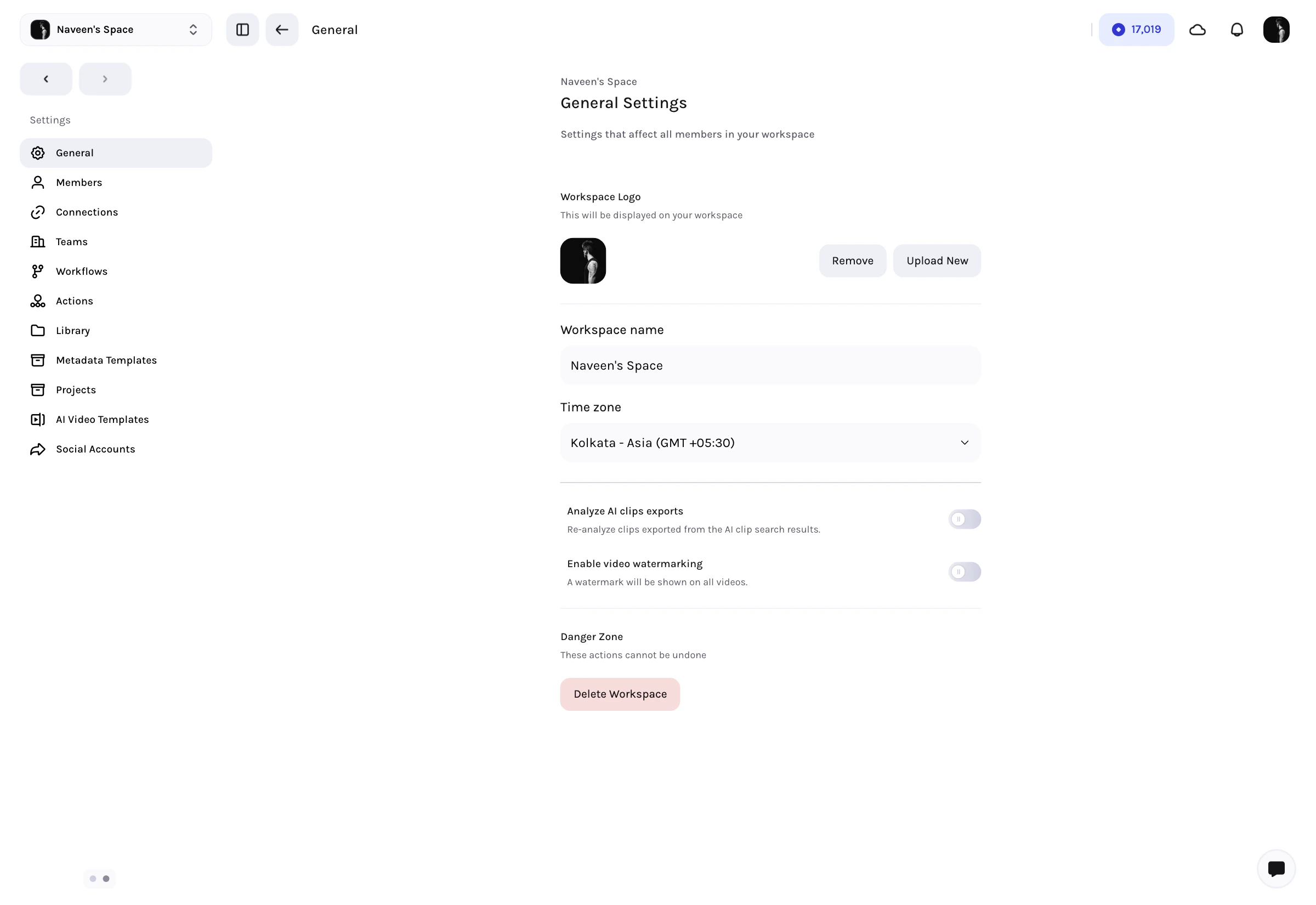
- Upload or remove the workspace logo
- Rename the workspace
- Set the shared timezone
- Control whether AI clip exports are analyzed again
- Enable video watermarking
- Set custom watermark text when watermarking is enabled
- Delete the workspace if your role allows it
Library Settings
The Library settings page controls how status-based workflow appears across the workspace.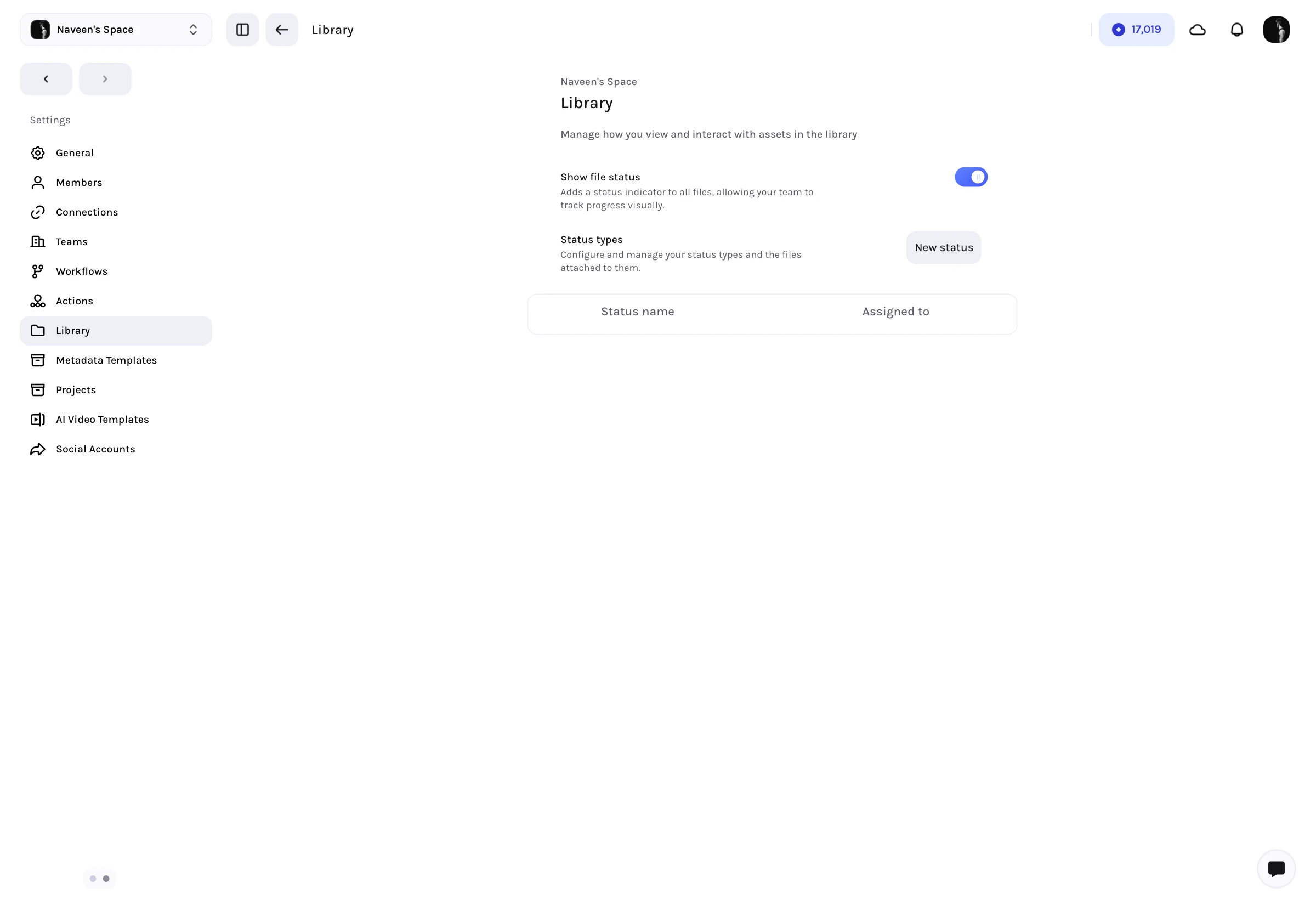
- Show file status to expose status indicators across library views
- Create new statuses
- Reorder statuses with drag-and-drop
- Edit how statuses are named and displayed
- Track how many files are currently assigned to each status
Members, Teams, And Access Structure
Workspace membership is managed from Members and, on supported plans, Teams.- Use Members to search the workspace roster, add users, assign workspace roles, and remove users.
- Use Teams when you need reusable groups inside the workspace rather than only individual assignments.
Workflow, Metadata, And Connected Systems
On higher-tier plans, the settings area becomes the workspace control center for production systems:- Connections for storage and external sources
- Workflows for repeatable process orchestration
- Actions for triggered automation
- Metadata Templates for reusable library schema
- Projects for workspace-level project setup
- AI Video Templates for reusable generation and editing patterns
- Social Accounts for publishing groups and outbound posting connections
Best Practices
- Use General settings first when standing up a new workspace.
- Turn on Library statuses only after agreeing on a workflow vocabulary across the team.
- Keep member roles clean before adding advanced workflow or publishing setup.
- Treat workflow, metadata, and connection settings as shared infrastructure, not per-user preferences.
Next steps
Manage personal preferences
Learn how profile, appearance, notifications, and time settings work for each user.
Configure library statuses
Go deeper on status design after enabling library status controls.