

Documentation Index
Fetch the complete documentation index at: https://docs-dev.tessact.ai/llms.txt
Use this file to discover all available pages before exploring further.
Overview
The Users directory is designed for batch admin work, not only one-off user edits. Once you select one or more users, Tessact exposes bulk actions for the most common org admin jobs. This is the fastest path for repeated operations such as onboarding, cleanup, and access correction.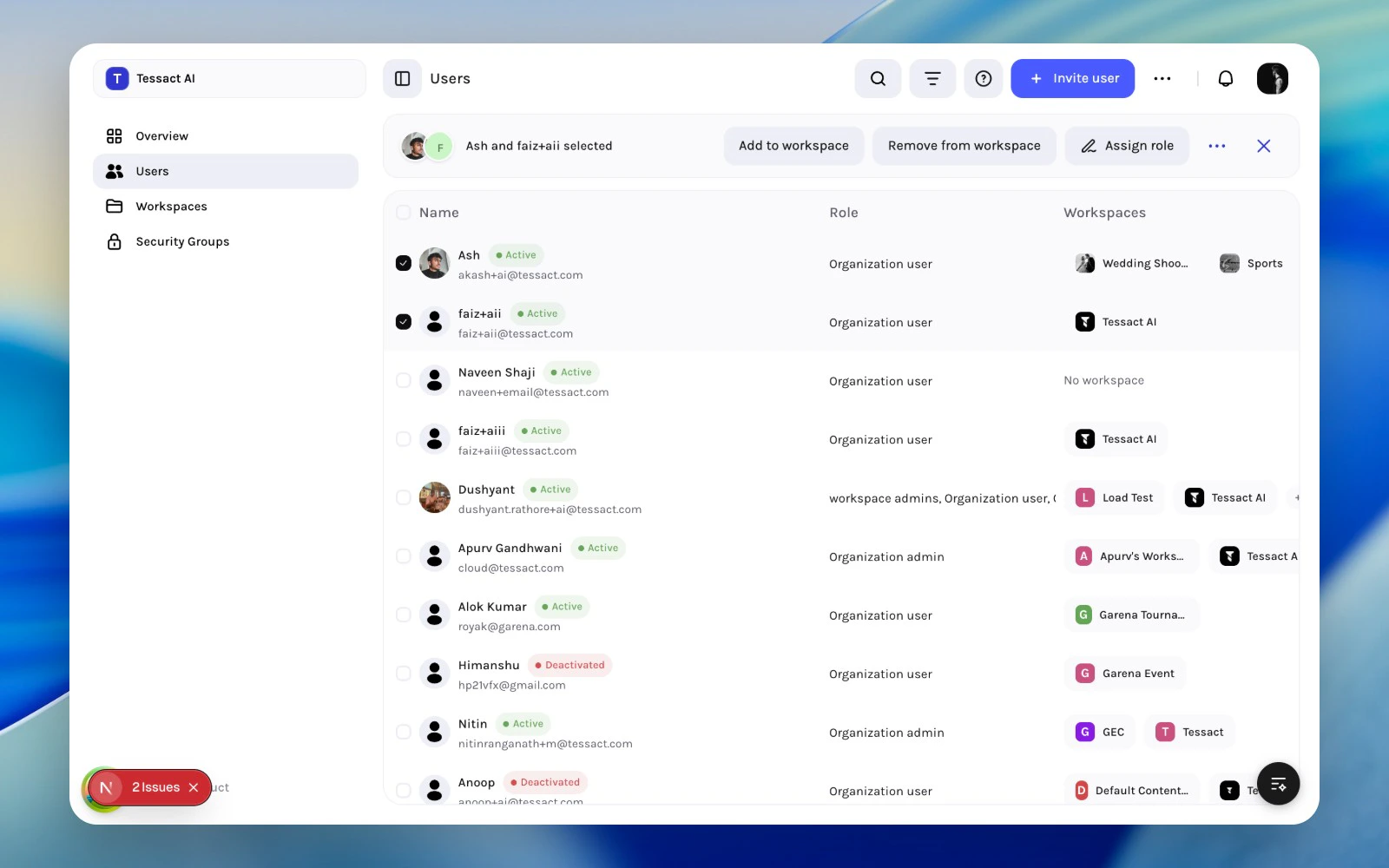
Available Bulk Actions
Depending on permissions, bulk actions include:| Action | What it does |
|---|---|
| Add to workspace | Adds selected users to a workspace with a chosen workspace role |
| Remove from workspace | Removes selected users from a chosen workspace |
| Assign role | Changes the organization role for the selected users |
| Activate users | Restores access for deactivated accounts |
| Deactivate users | Disables access for selected accounts |
| Download users | Exports the selected users |
Typical Bulk Workflows
Onboard A Team
- Invite or bulk add users.
- Select the new users.
- Use Add to workspace.
- Apply the correct workspace role.
Clean Up Dormant Access
- Filter for inactive users.
- Select the affected accounts.
- Remove workspace access or deactivate the accounts, depending on the case.
Standardize Org Roles
- Filter by current role or search for a cohort.
- Select the users.
- Use Assign role.
Create a clean selection first
Search or filter the directory until the cohort is unambiguous, then select the matching users from the table.
Open the role assignment modal
Click Assign role from the selected-user action bar. Tessact applies one organization role across the entire selected cohort.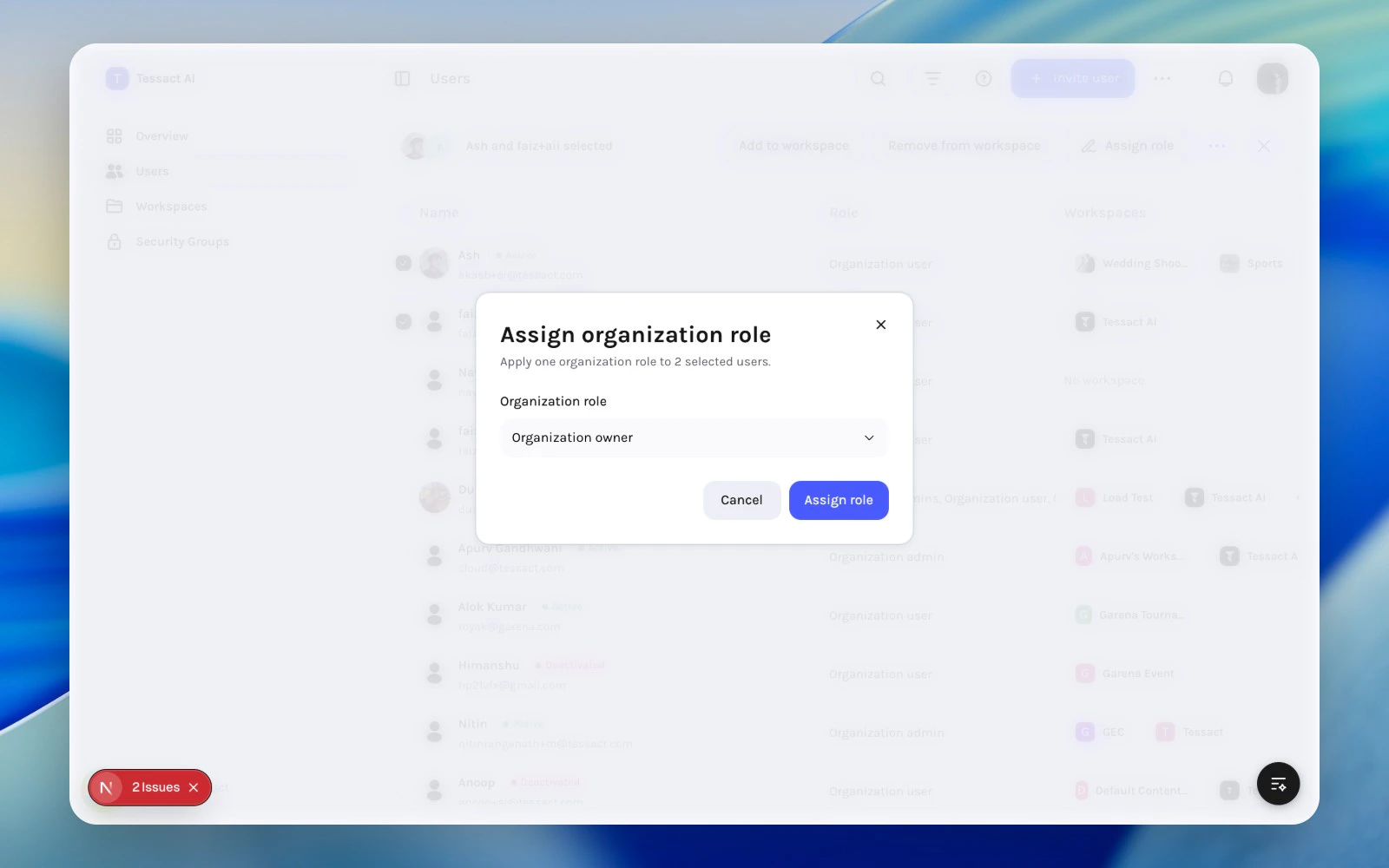
Use Selection Carefully
Bulk actions are powerful because they compress admin time, but they also increase blast radius. Before applying a bulk change:- confirm the filters are still correct
- check how many users are selected
- verify whether the action changes org role, workspace membership, or account status
Exporting Users
The users directory supports CSV-style export actions from both the page action menu and the selected-user bulk menu. Exports are useful for:- external audits
- license planning
- spreadsheet-based access reviews
- reconciling user lists against HR or IT systems
Practical Bulk-Action Order
When several changes are needed at once, keep the order clean:- Filter and select the exact cohort.
- Use Add to workspace or Remove from workspace for access changes.
- Use Assign role only if the person’s organization-level responsibility changed.
- Use activation or deactivation after the access model is correct.
- Export the selected cohort if you want an audit snapshot before a large cleanup.
Best Practices
- Use bulk actions for cohorts, not edge cases.
- Filter first, select second, apply third.
- Keep role changes and membership changes conceptually separate.
- Prefer removal from a workspace over full deactivation when the person still belongs in the organization.
- Export before large cleanup passes if you want a simple audit trail.
Next Steps
User lifecycle management
See the end-to-end flow for invites, activation, and review.
Membership operations
Focus specifically on workspace access changes from the user directory.