

Documentation Index
Fetch the complete documentation index at: https://docs-dev.tessact.ai/llms.txt
Use this file to discover all available pages before exploring further.
Overview
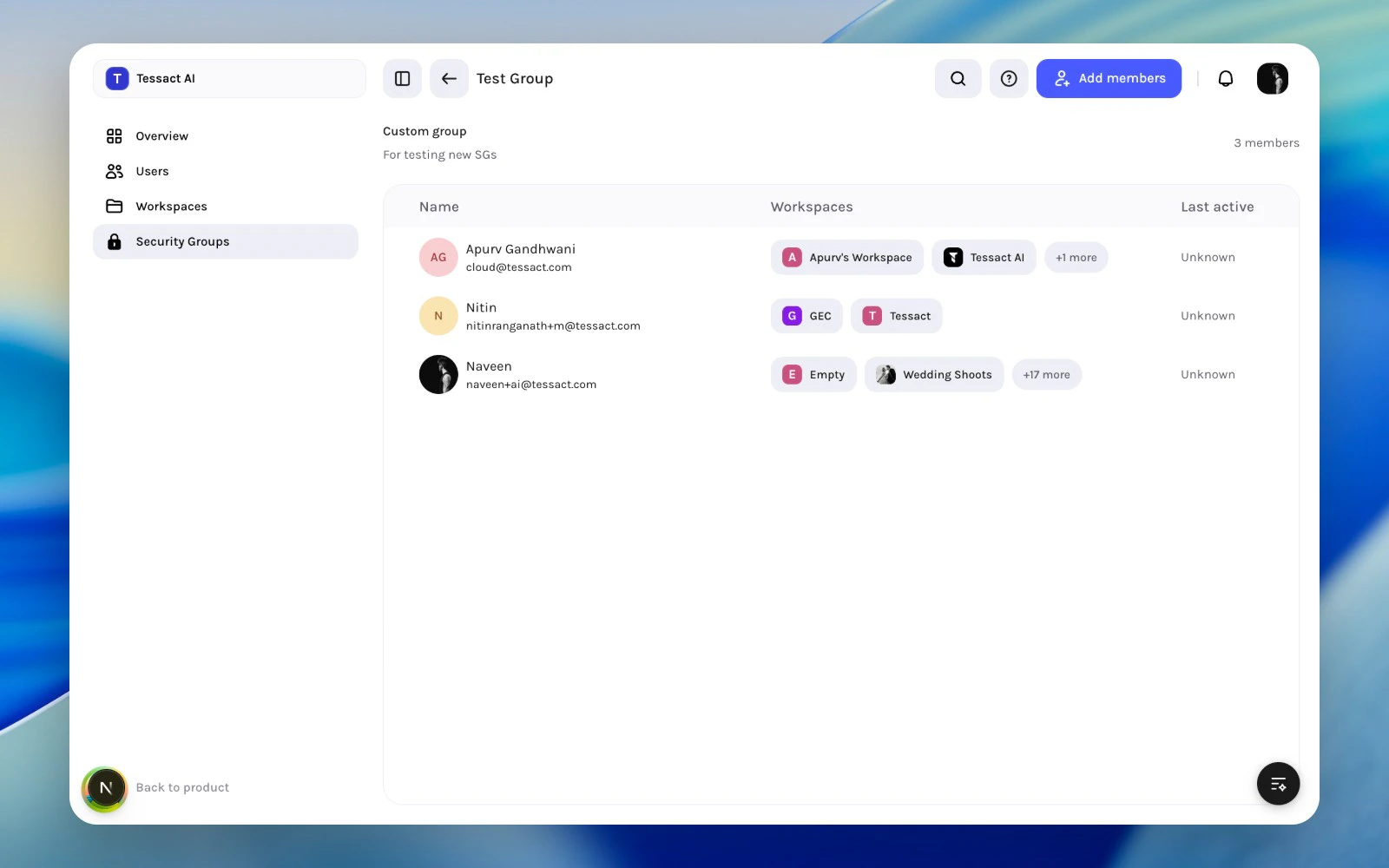
Open any custom security group to manage its member list. The group detail page answers three practical questions:- who belongs here now?
- where else do these people work?
- who should be added or removed?
What The Group Page Shows
The group page includes:- a short group summary at the top
- whether the group is default or custom
- total member count
- a searchable member table
| Column | What it shows |
|---|---|
| Name | Identity and email |
| Workspaces | Where the member already works |
| Last active | How recently the member used Tessact |
Add Members
For custom groups, use Add members from the action bar. The add-members flow lets you:- search across organization users
- exclude people already in the group
- select multiple users at once
- submit the cohort in one action
Default groups do not expose manual add-member controls because their membership is automatic.
Open a custom security group
Start from Security Groups, then open the specific custom group whose cohort you want to maintain. The group page gives you the current member list, workspace context, and activity signals in one place.
Search and select the people to add
Click Add members, search the organization directory, and select the eligible people you want to add to the cohort.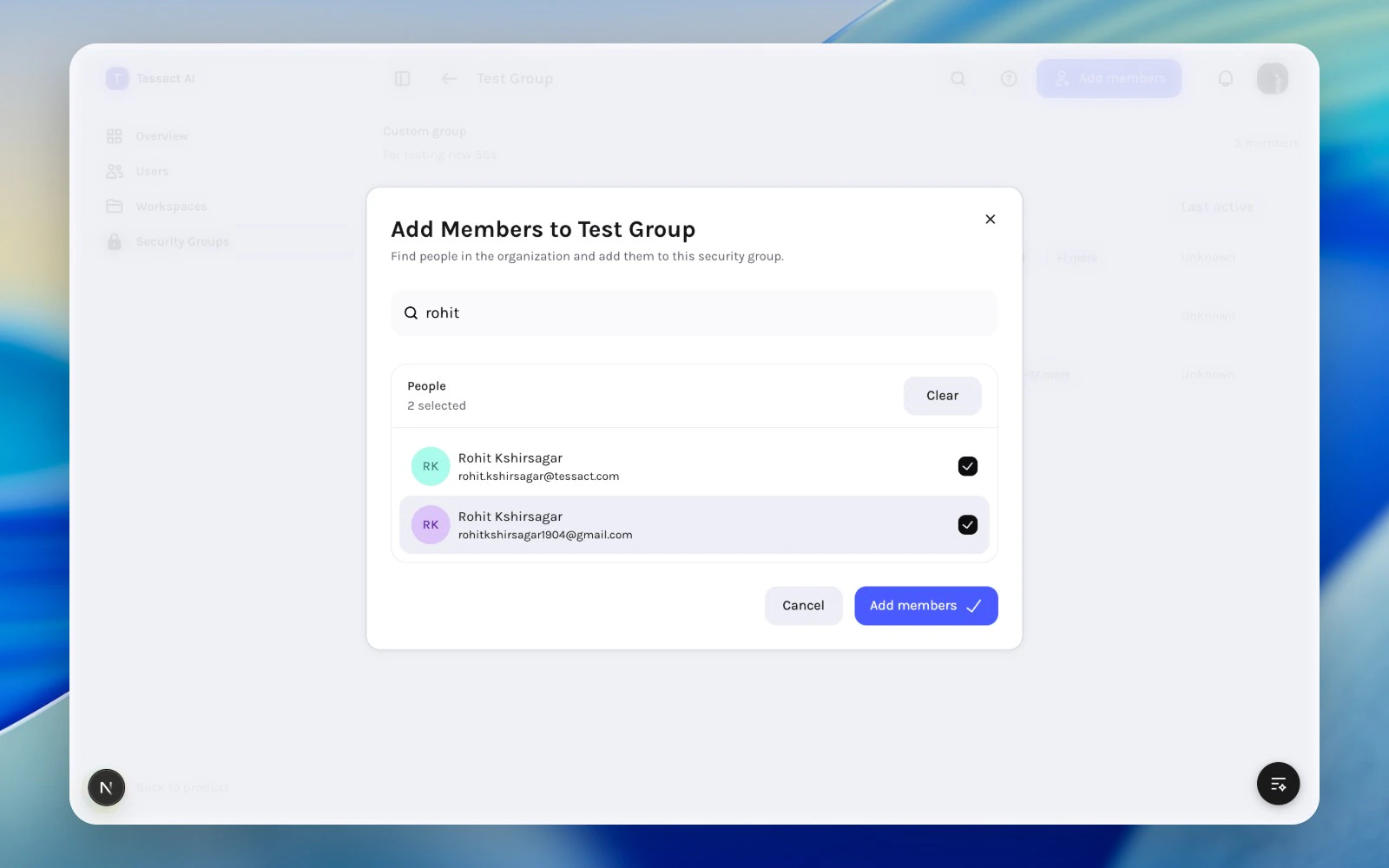
Remove Members
For custom groups, select one or more members and use Remove members. This is appropriate when:- a person changes teams
- a temporary access cohort ends
- a group becomes too broad over time
Use Workspace Context To Make Better Decisions
The Workspaces column is important. It helps you answer whether a group is still grounded in real operational context. If a member no longer works in the workspaces associated with the group’s purpose, that is usually a sign that the group membership should be reviewed.Activity As A Governance Signal
The Last active column is not the sole criterion for removal, but it is a useful signal. Use it to spot:- dormant accounts lingering in a sensitive group
- former collaborators who should be cleaned up
- broad groups that have not been reviewed in a while
Best Practices
- Add members in batches when the cohort is obvious.
- Remove members as soon as the group purpose no longer fits.
- Use workspace context to validate the cohort.
- Do not use security groups as a substitute for user deactivation.
- Keep the member list aligned with a clear description of group purpose.
Next Steps
Membership governance
Keep the broader governance model clear as groups change over time.
When to use security groups
Decide when group-based access is the right tool in the first place.