

Connect Tessact to Zapier so your Library activity can launch automations across more than 6,000 apps. The 13 October 2025 release introduced outbound webhooks, letting you push structured payloads into Zapier every time Tessact detects a key event in your workspace.Documentation Index
Fetch the complete documentation index at: https://docs-dev.tessact.ai/llms.txt
Use this file to discover all available pages before exploring further.
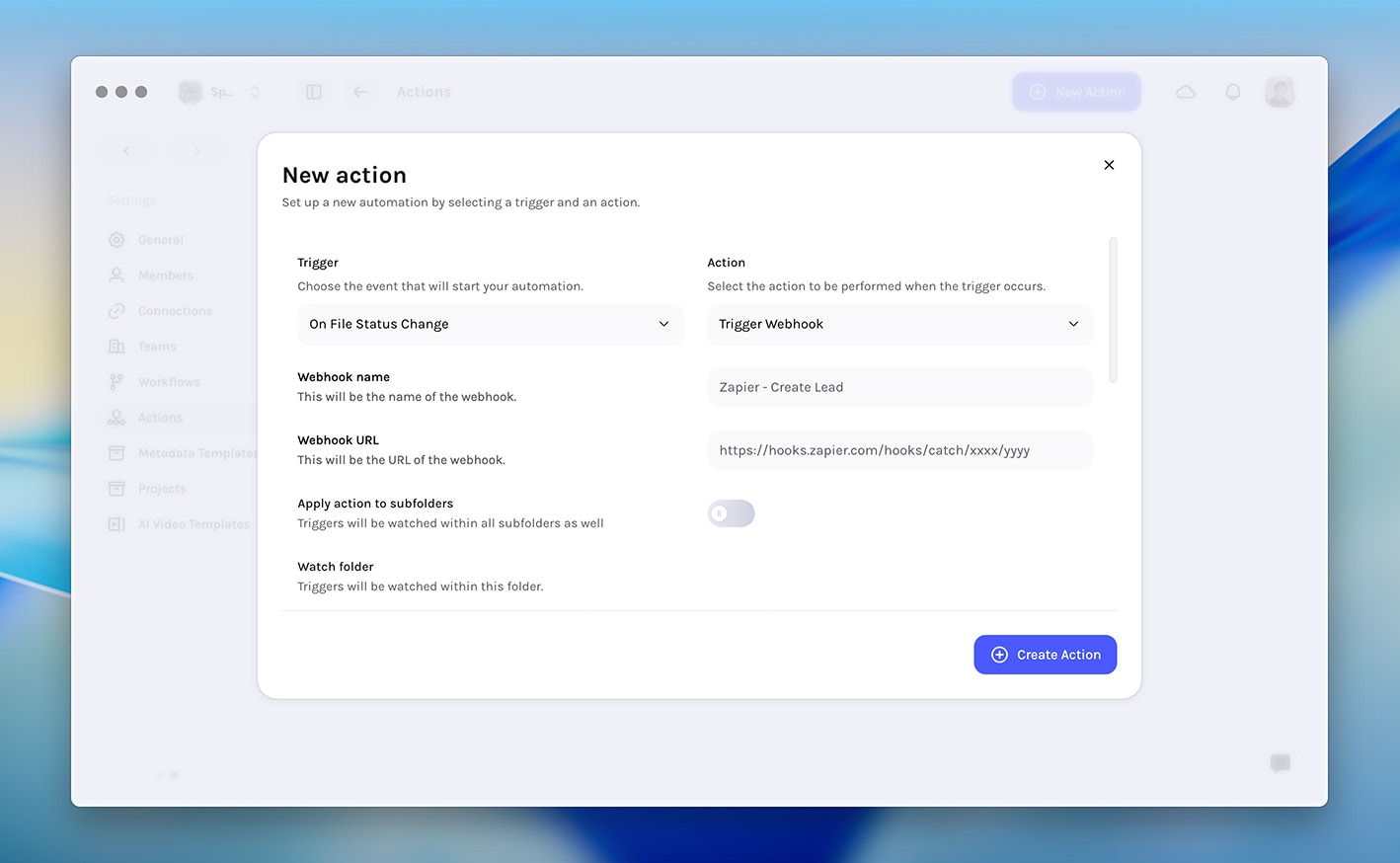
Zapier uses Tessact’s Trigger webhook action. Once you save an action in Settings → Actions, any matching event sends a POST request to the Zap webhook URL you supply.
Why connect Tessact to Zapier?
- Close the loop on asset reviews — Notify the right reviewers in Slack or Teams as soon as status changes land in Tessact.
- Sync metadata everywhere — Update spreadsheets, Airtable bases, or project trackers with the latest asset details without manual exports.
- Kick off downstream automation — Launch editing jobs, send invoices, or open support tickets the moment AI analysis completes.
- Stay real-time — Events post to Zapier immediately, keeping your operational systems in sync with Tessact.
Prerequisites
- Tessact workspace access with permission to manage Settings → Actions
- Zapier account with access to Webhooks by Zapier (available on all paid plans)
- A target Zap that will receive Tessact events
Create the Tessact webhook action
Generate a Zapier webhook URL
In Zapier, create a new Zap and choose Webhooks by Zapier → Catch Hook as the trigger. Copy the unique webhook URL that Zapier provides.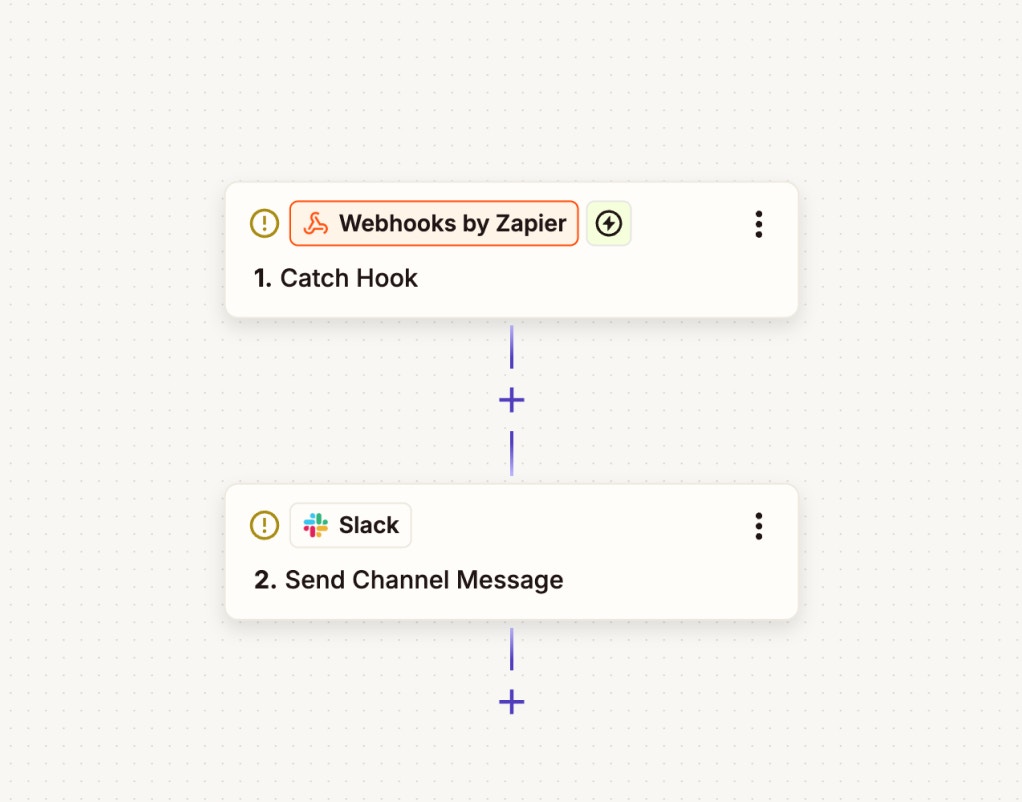
Open Settings → Actions in Tessact
Navigate to Settings → Actions and select Create New Action to add an automation.
Choose an event trigger
Pick the Tessact event you want to monitor—for example File status change or File uploaded to folder.
Supported Tessact triggers
The 13 October release ships with the following event triggers. Configure separate actions if you want distinct payloads or Zap behavior per trigger.- Comment added to file (includes comment text, user email, video URL)
- File status change
- File uploaded to folder
- File viewed
- File downloaded
- File analyzing started
- File analyzing complete
Additional triggers and complementary actions are on the roadmap. Keep an eye on future release notes for updates.
Designing the payload
Your payload template can contain static values, Tessact variables, or structured JSON. Zapier automatically parses JSON bodies, so you can use nested structures for richer context.payload-template.json
Build the Zapier workflow
Test the trigger
In Zapier, click Test Trigger on your Catch Hook step. Perform the corresponding action in Tessact (for example upload a file). Zapier should instantly show the payload.
Map fields to actions
Add the downstream app step (e.g., Slack, Gmail, Airtable) and map each field from the Tessact payload to the inputs you want to automate.
Add filters or paths (optional)
Insert Zapier Filters or Paths to branch on status values, specific folders, or user emails before running the action.
Example use cases
- Editorial QA — When an editor comments on a video, create a corresponding task in Asana with the clip URL attached.
- Delivery tracking — After AI analysis completes, send a summary email with download links to the distribution team.
- Rights management — On file downloads, log the activity in Airtable and notify legal for high-value titles.
- Localization workflow — Fire a webhook when status changes to “Ready for Dubbing”, triggering a Zap that creates jobs in a translation platform.
Troubleshooting tips
- No payload in Zapier: Ensure the action is enabled and the Tessact event actually happened after it was saved. Use the test button to emit sample data.
- Unexpected payload fields: Review your JSON template—invalid syntax causes Tessact to send a plain string instead of JSON. Validate with an online linter first.
- Multiple notifications: Use Zapier filters or split actions per folder if the trigger is too broad.
- Permission errors: Confirm your Tessact role can access the chosen watch folder and perform the action you are testing.