

Documentation Index
Fetch the complete documentation index at: https://docs-dev.tessact.ai/llms.txt
Use this file to discover all available pages before exploring further.
Overview
AI Search for Clips lets you type a natural-language prompt and receive ready-to-edit clips—normally between 1 and 3 minutes—that match the meaning of your query, even when no exact words appear on-screen or in the transcript. The engine fuses computer vision, audio analysis, OCR, and a fast large-language model (LLM) that understands entire story arcs, so it can infer implied scenes (e.g., “hero triumphs” or “tense negotiation”) that traditional metadata alone would miss.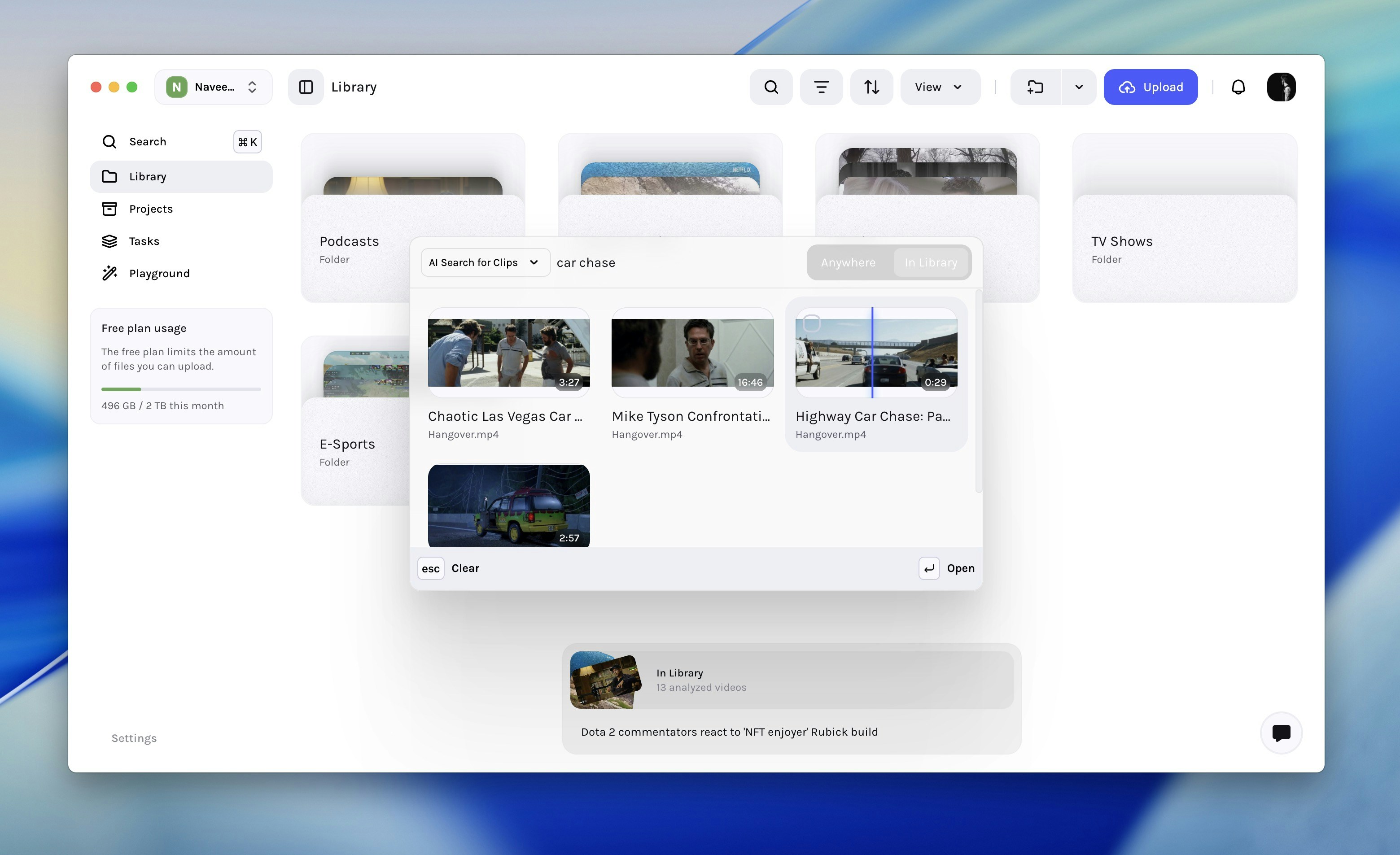
Accessing AI Search for Clips
You can open AI Search for Clips by clicking on the Search icon in the root left sidebar on any screen.How the Engine Builds Clips
- Signal extraction – Tessact’s proprietary AI agent deeply analyzes every aspect of your video, capturing all relevant signals for the most accurate understanding of its content.
- Semantic parsing – A domain-tuned LLM ingests the entire video timeline, builds a context graph, and aligns scenes with your prompt, including implied meaning (e.g., “reveal,” “celebration,” “problem statement”).
- Clip carving – Tessact auto-selects a start and end that form a coherent narrative unit (≈ 1–3 min) with clean audio and video cut-points.
- Ranking & deduplication – Clips score on relevance, freshness, and diversity before display.
Quick Search handles metadata-centric look-ups (custom fields, codecs, file names). AI Search for Clips focuses on semantic scene discovery.
Running a Search
Launch AI Search
Press ⌘/Ctrl + K, type “AI Search for Clips”, and press Enter.
or
Click the Search icon in the sidebar.
or
Click the Search icon in the sidebar.
Enter your prompt
Use plain language—examples:
•
•
•
•
founder talking about company vision•
slow-motion dunk close-up•
tense moment before battleWorking with Results
| Action | Where | Outcome |
|---|---|---|
| Select clip → “Add to Library” | Library, Search modal | Saves a sub-asset in the current folder. |
| Multi-select → “Add to Project” | Library, Project view | Copies clips to the Project bin for collaborative edits. |
| Add to timeline E | Inside Tessact Editor | Inserts clip at playhead, retaining in/out points. |
Performance Expectations
| Library size | Avg. response time |
|---|---|
| ≤ 100 K assets | ~1 s |
| 100 K–1 M | 1 – 1.5 s |
| > 1 M | Up to 2 s |
Best-practice Prompts
| Goal | Example prompt |
|---|---|
| Thematic | quiet tension before launch countdown |
| Visual | close-up of smartwatch interface scrolling |
| Audio-driven | crowd cheering loudly at reveal |
| Emotional | team celebrating milestone with high-fives |
Next steps
| Topic | Link |
|---|---|
| Add AI-found clips to a multi-agent workflow | Creating Workflows |
| Enrich clips with custom fields | Metadata Management |
| Automate search via API | Search API Reference |
You can now locate contextually perfect clips in seconds and feed them straight into your edits, projects, or workflows—no manual scrubbing required.