

Documentation Index
Fetch the complete documentation index at: https://docs-dev.tessact.ai/llms.txt
Use this file to discover all available pages before exploring further.
Overview
In Tessact, workspace membership changes can start from the Users directory instead of only from an individual workspace. This matters when admins think in terms of people first:- where does this user already have access?
- where should that access change?
- is the same change needed for several users at once?
Audit Membership From The Directory
The Workspaces column gives the first membership signal. It helps you distinguish:- users with no workspace access
- users with one clear operational home
- users spread across many workspaces
Add Users To A Workspace
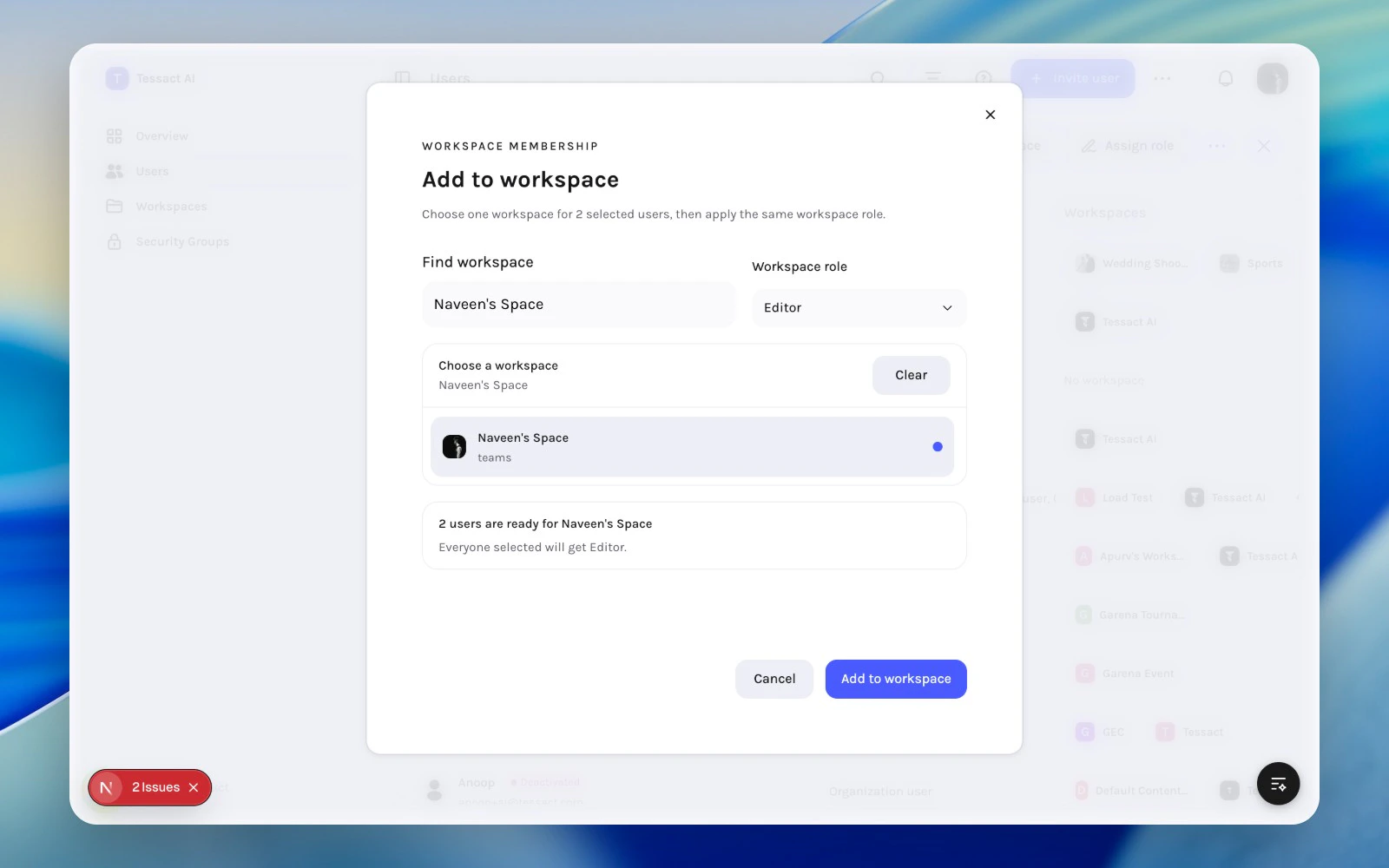
When several people need the same access, select them in the directory and use Add to workspace. The membership modal lets admins:- choose the destination workspace
- choose the workspace role
- apply the change only to eligible users
Filter or search until the right cohort is visible
Start from Users, then narrow the list by status, activity, workspace, or role until the people you want to update are easy to verify.
Select the users and open bulk membership actions
Use the left-side row selectors to choose the cohort. Tessact surfaces the selected-user action bar above the table as soon as you make the first selection.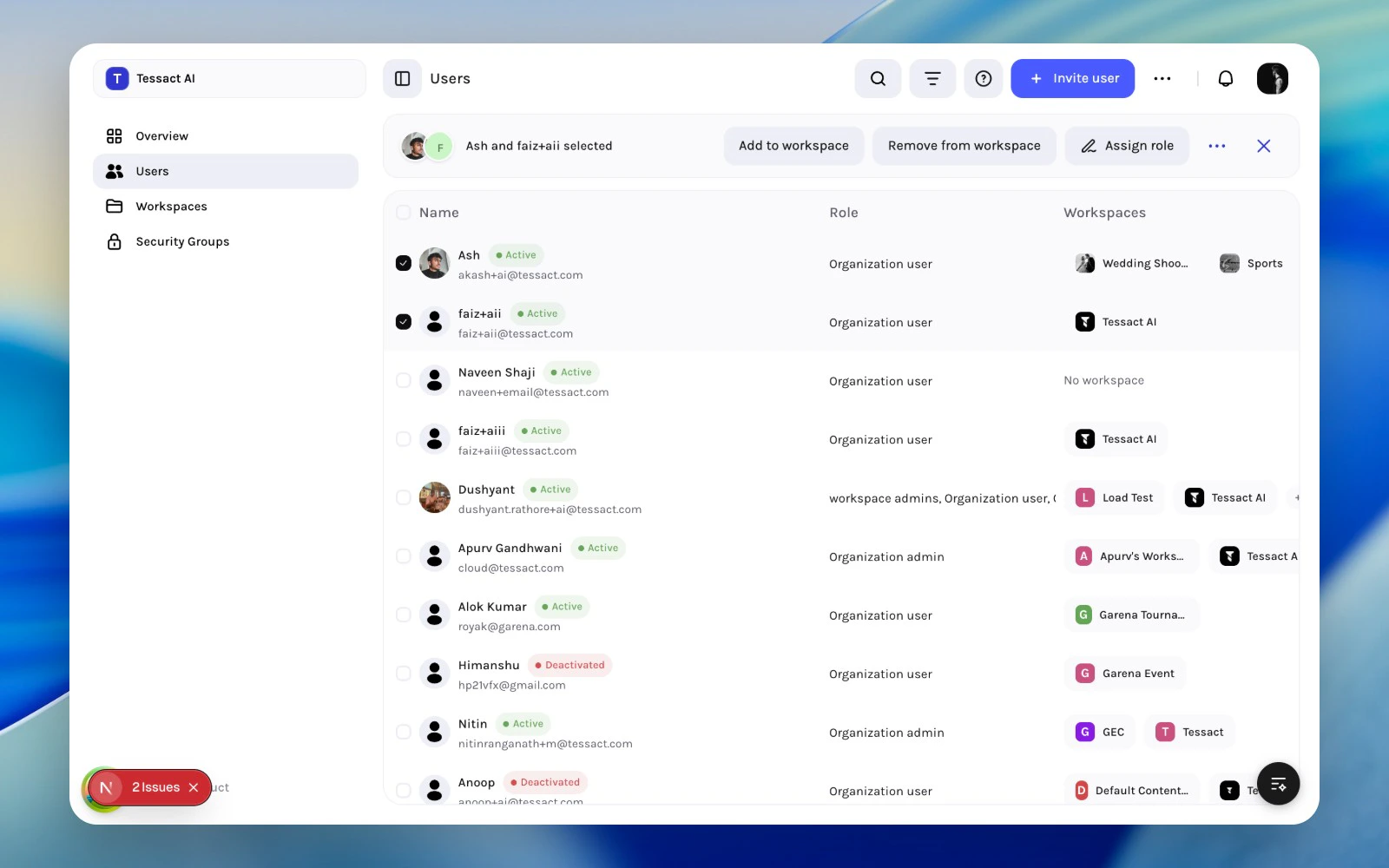
Choose the workspace and workspace role
Click Add to workspace, search for the destination workspace, then assign the shared workspace role that should apply to the eligible users.
Remove Users From A Workspace
Use Remove from workspace when a user’s organization account should stay active but their access to a specific workspace should not. This is the right action for:- team changes
- project handoffs
- temporary external access that has ended
- workspace cleanup after an initiative closes
- Select the cohort in Users.
- Open Remove from workspace.
- Choose the workspace that should no longer be available.
- Apply the removal without changing the organization account itself.
When To Start From Users Instead Of Workspaces
Start from Users when:- the change is about one person across several workspaces
- the same correction affects multiple users
- you are running access reviews by role or inactivity
- you need to understand the workspace itself
- the question is about workspace ownership or limits
- the workspace member list is the primary object of review
Common Review Patterns
Offboarding
- Filter or search the user.
- Remove workspace memberships that should end immediately.
- Deactivate the account if org access should also end.
Role Change
- Confirm current workspaces in the directory.
- Add or remove workspace memberships as needed.
- Adjust the organization role only if the person’s admin responsibility also changed.
Cleanup
- Filter users with no workspace.
- Filter users inactive for 30+ days.
- Review whether those accounts still need to exist.
Best Practices
- Use workspace membership changes before touching organization roles.
- Keep workspace access narrow and operational.
- Prefer bulk membership changes for repeatable org events.
- Review inactive users with broad workspace access first.
- Treat no workspace accounts as a recurring cleanup queue.
Next Steps
User lifecycle management
Return to the broader user lifecycle flow.
Admin bulk actions
See how membership changes fit into the full bulk action model.