

Documentation Index
Fetch the complete documentation index at: https://docs-dev.tessact.ai/llms.txt
Use this file to discover all available pages before exploring further.
Overview
Tessact’s review workflow lives inside the asset page. Open any asset from the Library and switch to the Comments panel to leave feedback, reply in threads, and track review progress without exporting files to another tool. Review is tightly connected to playback, metadata, and detections, which means reviewers can comment while still seeing the asset, its timing, and its operational context.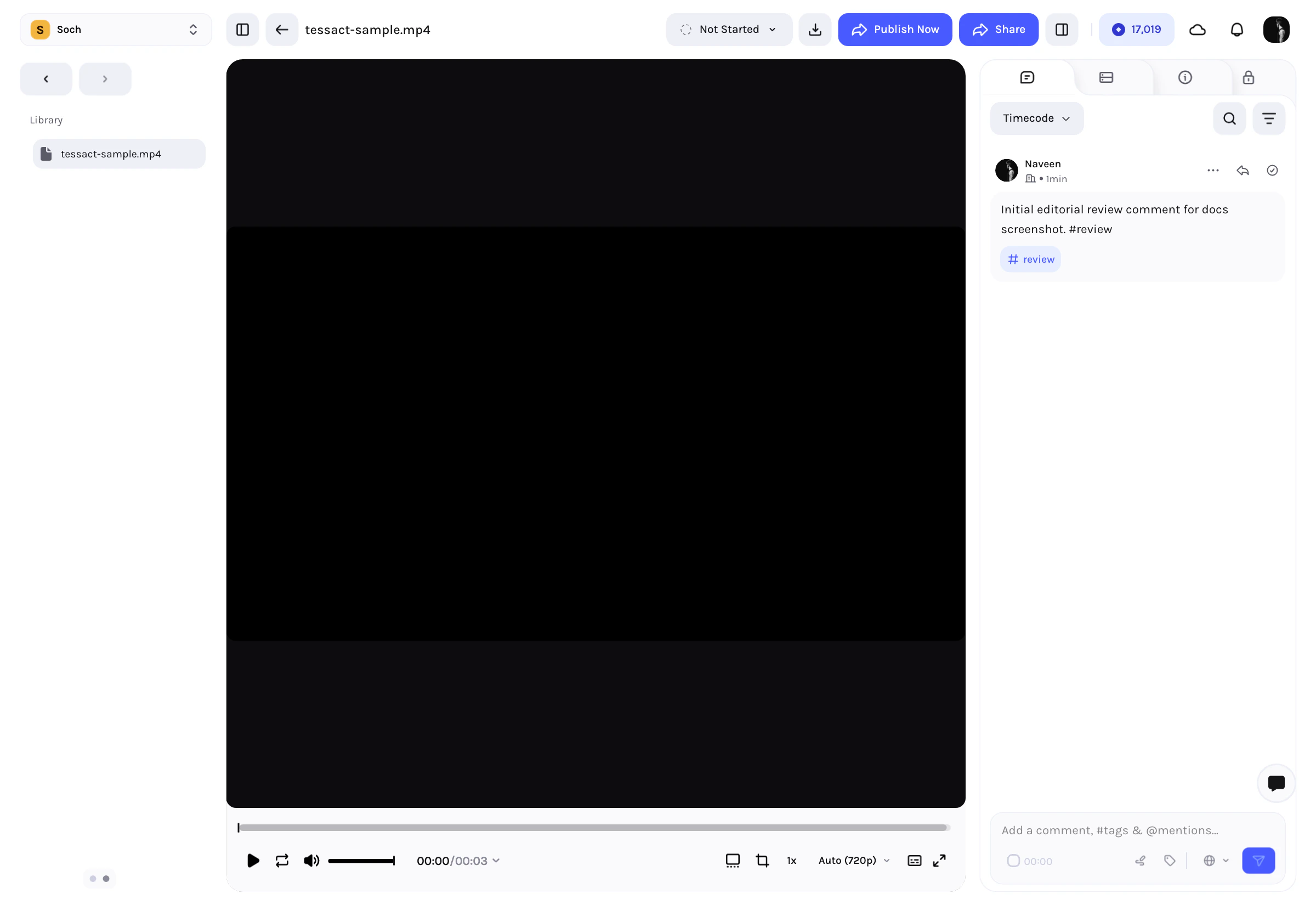
Open The Review Surface
- Open Library.
- Click any asset to open its detail page.
- Use the right-side panel and select Comments.
Video and other timed assets support time-ranged comments. Non-timed assets still support threaded comments and replies.
Add A Comment
The comment composer is always anchored at the bottom of the comments panel.- Type plain feedback directly into the input.
- Use @mentions to notify workspace members.
- Use #tags to label comments for later filtering.
- Press Enter to send, or Shift + Enter to add a new line.
Timed Review On Video
For video assets, comments can be attached to a specific moment or a time range.- Pause on the relevant frame.
- Start a comment, or press C to jump into comment mode.
- Adjust the time selection if needed.
- Submit the comment.
Markers And Visual Feedback
Timed review also supports lightweight visual markups.- Open the Markers tool while commenting on a timed asset.
- Draw with a brush, arrow, or ellipse.
- Change marker color before submitting.
- Include the drawing with the comment so reviewers can point at exact visual areas, not just timestamps.
Visibility Options
Each comment can be scoped to the right audience:| Visibility | Who can see it |
|---|---|
| Public | Anyone with access to the file |
| Workspace | Workspace members only |
| Task specific | Users and teams assigned to the task |
Reply, Resolve, And Maintain Threads
Each comment supports follow-up collaboration:- Reply to keep discussion attached to the original note
- Mark as done when the issue is addressed
- Edit or delete your own comments
- Change visibility when the audience for the comment needs to change
Search, Sort, And Filter Comments
The comments panel includes tools for large review threads:- Sort comments, including time-based review order
- Search within comments
- Filter unread comments
- Filter marked-as-done comments
- Filter by tag
- Filter by mention
- Filter by commenter
- Filter by created date
Review Alongside Metadata And Detections
Comments are only one part of the asset page. The same surface also lets reviewers switch to:- Metadata to inspect or edit operational fields
- Technical metadata for file-level details
- AI detections when entities or categories have already been processed
- Access controls for users with the required permissions
Best Practices
- Use mentions when a comment needs a specific owner.
- Use tags consistently so repeated issues stay filterable.
- Prefer timed comments over general notes on video assets.
- Mark comments as done when they are resolved to keep active review queues clean.
- Use workspace visibility for internal editorial discussion and public visibility when broader file collaborators should see the note.
Next steps
Work from the Library
See how review fits into Tessact’s broader Library workflow.
Configure statuses
Add workflow states that complement comment-based review.